


How to add first automation#
To create a new automation, go to ShopMagic → Automations in your WordPress dashboard and click Add New.

If you do not want to create an automation from scratch, you can use one of the Ready-to-use Recipes.
For a step-by-step example of choosing an event, adding filters, configuring an action, and publishing your automation, follow the Setting up automation for beginners guide.
Managing automations#
From ShopMagic 4.9.0, the automations list includes an Active switch, a Runs counter with a chart, and a Queued counter. These let you change an automation’s publication status and check its activity without opening the editor.
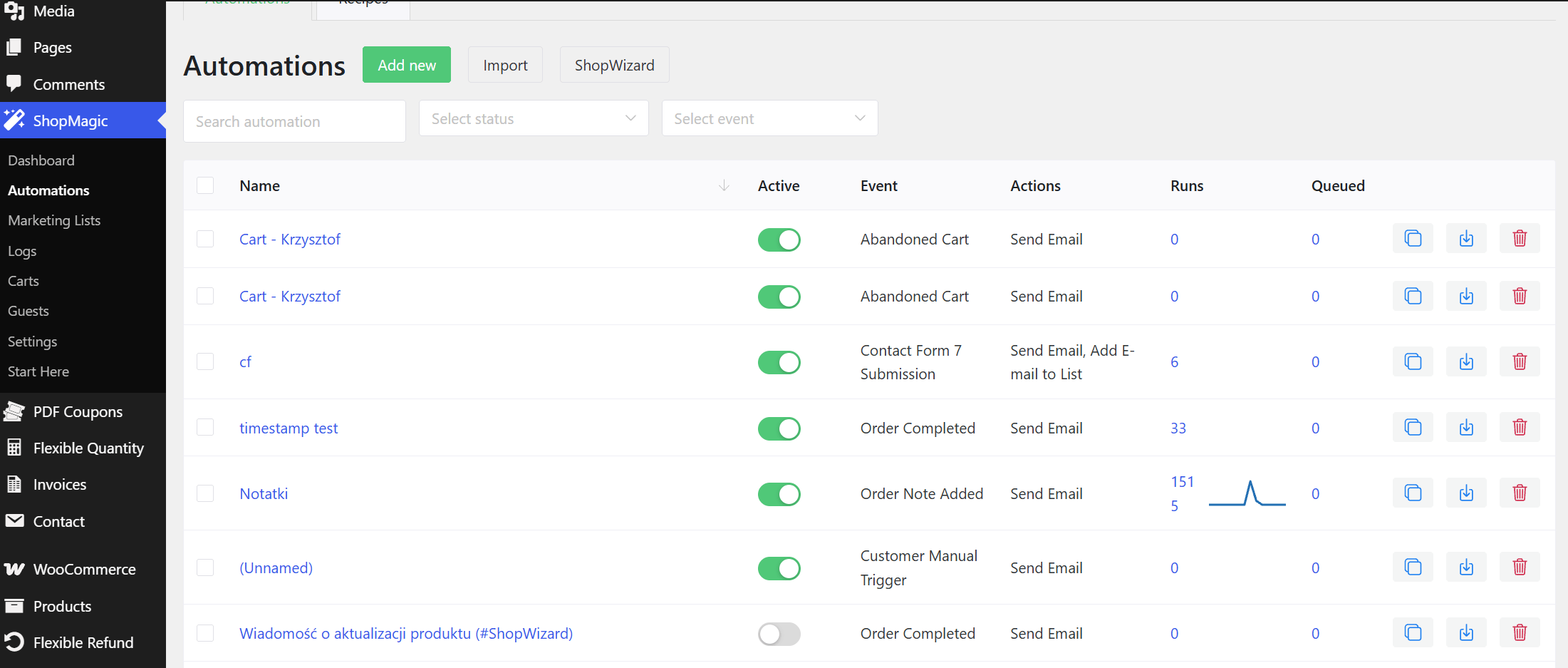
Active — enable or disable an automation#
Use the Active switch to publish an automation or change it back to a draft. You do not need to open the automation editor to change its status.
Important: Switching an automation off does not cancel tasks that are already in the queue. To cancel those tasks, open ShopMagic → Logs → Queue and cancel the relevant entries.
Runs — check completed actions#
The Runs counter shows the number of completed action executions recorded for an automation in Outcomes. It includes both successful and failed executions.
This counter is based on all retained completed Outcomes records, rather than only the last 14 days. It does not represent the number of delivered emails: an automation can contain multiple actions, and some actions do not send emails.
Click the number to open Outcomes filtered by that automation and check the results.
Activity chart — view the last 14 days#
The small chart next to Runs shows completed action executions over the last 14 days, including today, using your WordPress timezone.
The chart appears only when there is at least one completed execution during that period. An automation can therefore have a Runs total greater than zero without a visible chart.
Queued — check pending tasks#
The Queued counter shows the number of pending tasks for an automation, including tasks scheduled for a future date. A number greater than zero does not necessarily indicate a problem.
Click the number to open Queue filtered by that automation. You can review the scheduled tasks and cancel individual entries using Cancel.
If either counter displays a dash (—), its statistics are currently unavailable. A dash does not mean zero executions or zero pending tasks.