


Dashboard#
The ShopMagic Dashboard gives you an overview of automation activity, email statistics, and recent action results. You can also create an automation, access documentation, and manage subscriber lists from this screen.
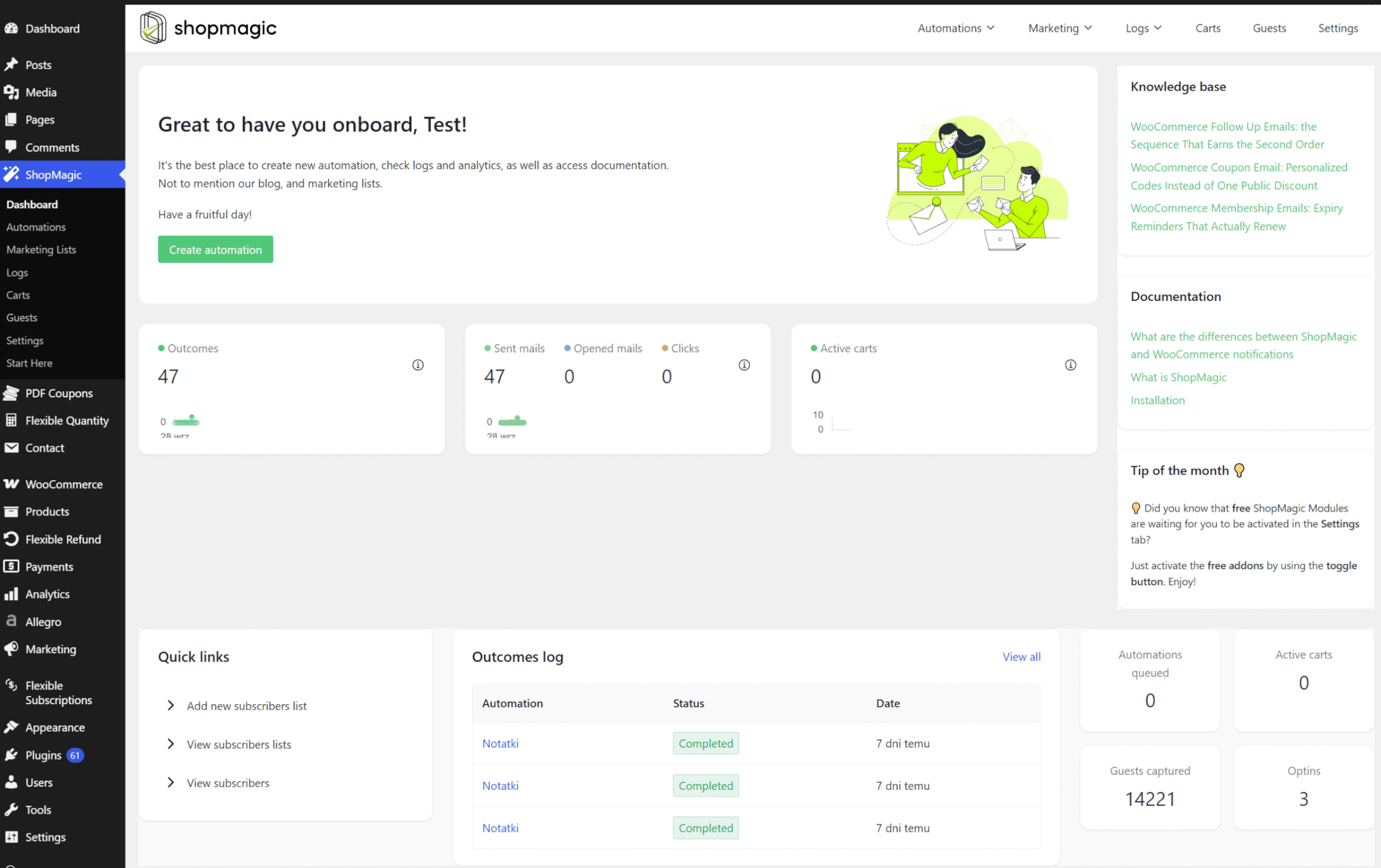
Create an automation#
Click Create automation in the welcome section to open the automation editor.
If you are creating your first automation, follow the Setting up automation for beginners guide.
Review activity charts#
The Dashboard includes charts for Outcomes, email activity, and active carts. Outcomes and email statistics cover the last 30 days. Cart data requires the ShopMagic Abandoned Carts add-on.
Outcomes#
The Outcomes chart shows successful action executions recorded during the last 30 days. Actions can include sending emails and other tasks configured in your automations.
To investigate individual results or failures, open ShopMagic → Logs → Outcomes.
Email statistics#
The email chart displays activity recorded by ShopMagic’s email tracker:
- Sent mails — emails recorded as sent.
- Opened mails — emails with a recorded opening.
- Clicks — recorded clicks on tracked links in emails.
Sent mails does not confirm delivery to the recipient’s inbox. Use these statistics together with Outcomes and your email provider’s logs when investigating delivery problems.
For more information, see Email tracker.
Active carts#
The Active carts chart displays cart activity supplied by the ShopMagic Abandoned Carts add-on. Without this add-on, the chart does not receive cart statistics.
Access guides and documentation#
The Dashboard provides three sections with learning resources:
- Knowledge base — links to recent ShopMagic blog articles.
- Documentation — links to selected setup and usage guides.
- Tip of the month — a tip about using ShopMagic.
Manage subscribers with Quick links#
The Quick links section provides shortcuts to:
- Add new subscribers list — create a subscriber list.
- View subscribers lists — open your existing lists.
- View subscribers — open subscriber records.
Check the Outcomes log#
The Outcomes log section shows a short list of recent completed action results. Click View all to open the full Outcomes screen and investigate individual executions.
If an email does not arrive, follow the Why are emails not sending? troubleshooting guide.
Review summary counters#
The Dashboard also includes summary counters:
- Automations queued — pending ShopMagic tasks, including tasks scheduled for the future.
- Active carts — cart statistics supplied by the Abandoned Carts add-on.
- Guests captured — guest customer records stored by ShopMagic.
- Optins — active subscriptions to your lists.
These counters summarize stored records or pending work. They do not all use the charts’ 30-day reporting period.
Check individual automations#
To review a specific automation, go to ShopMagic → Automations. From ShopMagic 4.9.0, this list includes the Active switch and the Runs and Queued counters.
The small activity chart beside Runs covers 14 days, while the Dashboard’s Outcomes and email charts cover 30 days.
For details about the automation list, see How to add first automation.