



Recipes (Templates)#
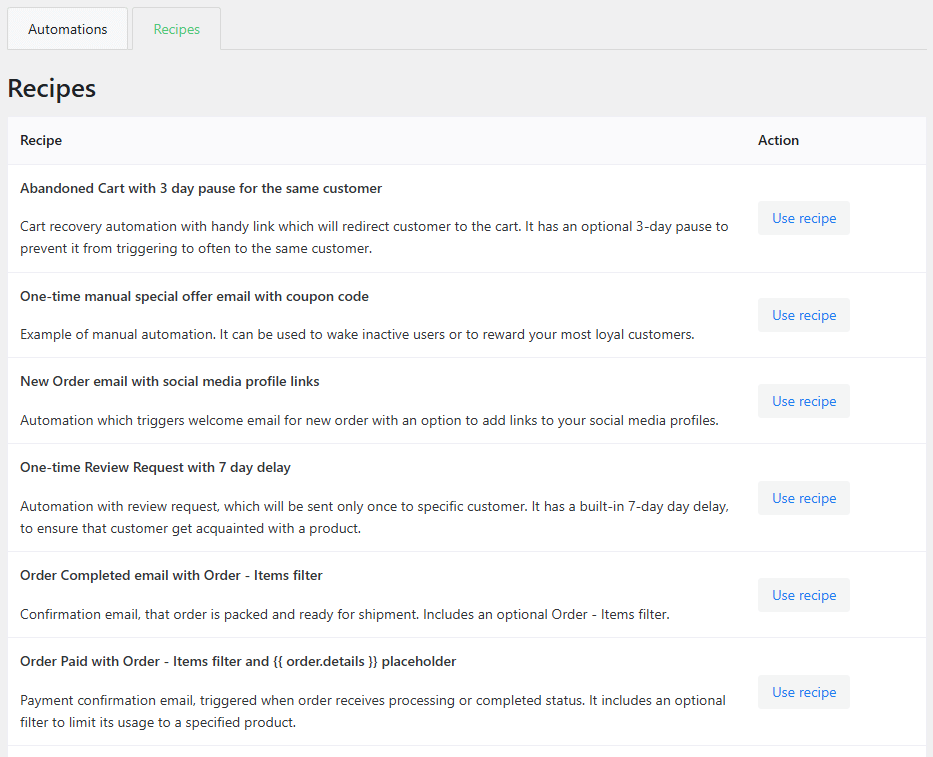
ShopMagic includes ready-made automation recipes that provide a starting point for common workflows. Each recipe contains a predefined event, actions, and any filters or settings needed for its scenario.
You can customize the resulting automation before publishing it.
How to use a recipe#
- Go to ShopMagic → Automations and open the Recipes tab.
- Read the recipe's description and check its required plugins.
- Click Use recipe.
- ShopMagic creates a new automation as a draft and opens its editor.
- Review the event, filters, actions, recipients, message content, and any delay settings. Adjust them for your store.
- Save your changes. For supported email actions, use Send test to check the message.
- Publish the automation when it is ready.
What does “Missing plugins” mean?#
Some recipes require additional plugins or ShopMagic add-ons. If a requirement is unavailable, ShopMagic displays a disabled Missing plugins button instead of Use recipe. The recipe description lists the required extensions.
Install and activate the listed plugins, then reload the Recipes tab. Some requirements are paid add-ons available with ShopMagic PRO; the message does not necessarily mean that every recipe requires PRO.
What happens after publishing?#
The automation responds when its configured event occurs and its conditions are met. Publishing a recipe-based automation does not automatically process past orders.
Using the same recipe again creates another automation. Check your existing automations before publishing a second copy to avoid overlapping actions or duplicate emails.
Send test checks an individual email action, not the complete workflow. Verify the event and filters with a controlled test, then check Outcomes for execution results.