



Carts#
The Carts section becomes available under ShopMagic → Carts when the ShopMagic Abandoned Carts add-on is installed and active alongside ShopMagic and WooCommerce.
Use this screen to review recorded carts, their statuses, and recovery statistics. It shows carts captured by ShopMagic, rather than every anonymous visit to your store.
Statistics#

- Recoverable orders — the number of saved carts currently marked Abandoned. Despite the label, these are cart records, not necessarily existing WooCommerce orders.
- Recoverable revenue — the sum of the stored totals of abandoned carts. This represents potential revenue, not confirmed sales.
- Recovered orders — the number of saved carts marked Recovered.
- Recovered revenue — the sum of the stored totals of recovered carts. These values come from cart records and may differ from final order totals.
- Recovery rate — recovered carts as a percentage of abandoned and recovered carts combined.
The recovery rate is calculated as:
Recovered carts ÷ (Abandoned carts + Recovered carts) × 100%For example, 20 recovered carts and 80 abandoned carts produce a recovery rate of 20%. Active, Submitted order, and Ordered records are excluded from this calculation.
Important: These statistics describe recorded cart statuses. They do not prove that a recovery email caused a purchase, and they are not a substitute for WooCommerce sales reports.
Cart list#
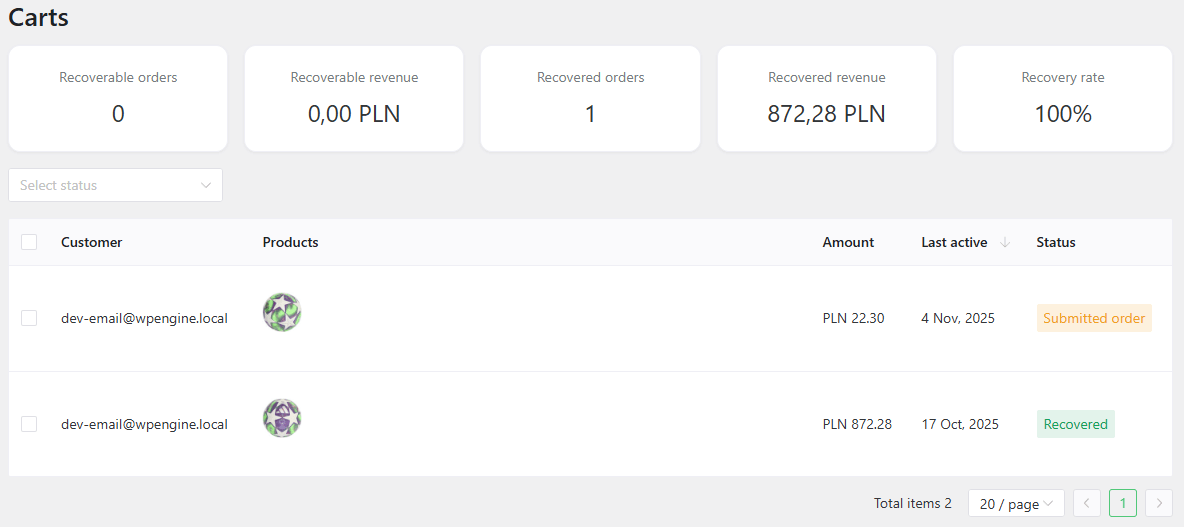
The table displays:
- Customer — the associated customer's email address, when available.
- Products — products recorded in the cart.
- Amount — the stored cart value.
- Last active — when ShopMagic last updated the cart record.
- Status — the cart's current recorded status.
Use Select status to filter the list. Clear the selection to return to the unfiltered view.
Cart statuses#
The interface supports five statuses:
Active#
A recorded cart that is still eligible for updates and has not yet been marked abandoned or associated with a submitted order.
ShopMagic updates the cart after tracked changes and relevant cart or checkout activity. The abandonment timer uses the record's last update; it does not detect whether the customer has closed the browser or is browsing unrelated pages.
Abandoned#
An active cart becomes abandoned when its last recorded update is older than the configured timeout and ShopMagic's background check processes it.
Configure Abandoned cart timeout (in minutes) under ShopMagic → Settings → Abandoned Carts. The default and minimum timeout are five minutes.
For example, with a ten-minute timeout, an active cart becomes eligible for abandonment ten minutes after its last saved update. The status change and subsequent actions may occur later because they depend on background processing.
Marking a cart abandoned triggers the Abandoned Cart event. Sending a recovery message requires a published automation whose filters and other conditions pass. The event's Pause period for customer (days) can also restrict repeated runs.
Submitted order#
The cart has been associated with an order submitted through checkout, but payment has not yet been recognized.
This is separate from Abandoned. In this version, the inactivity check processes active carts; an unpaid submitted order does not become abandoned simply because the cart timeout expires.
Recovered#
A previously abandoned cart becomes recovered when ShopMagic associates it with an order that WooCommerce recognizes as paid.
A customer can return through the restoration link generated by {{ cart.link }}, but a recorded email delivery or link click is not required for the Recovered classification. Clicking a recovery link alone does not mark the cart recovered.
Ordered#
This status represents a purchase completed without the cart being classified as recovered. However, in Abandoned Carts 2.2.42, the normal purchase-handling flow deletes non-recovered cart records after recognizing payment. You should therefore not expect every successful purchase to remain visible as an Ordered row.
Ordered carts are excluded from the recovery statistics.
Deleting cart records#
To delete records, select their checkboxes, choose Delete from the bulk actions dropdown, and click Execute.
Deleting a record removes ShopMagic's saved cart data. It does not delete the customer's account or the associated WooCommerce order.
Important: Deletion is not just a way to hide a row. It changes statistics calculated from the remaining records and prevents existing recovery links from restoring that deleted cart. If recovery actions are already queued, review them separately in Queue.
Automatic cleanup#
Under ShopMagic → Settings → Abandoned Carts, enable Enable Carts clear to automatically remove records whose last update is more than 30 days old.
Cleanup runs periodically, so deletion may occur after the 30-day threshold rather than at an exact time. It affects recovery statistics because deleted records are no longer included.