



Testing#
ShopMagic includes a Send test feature for checking an individual email action before enabling your automation. It sends a real email so you can review the message content, formatting, and placeholder values.
The feature is available for Send Email, Send Email - Plain Text, and Send Email - Raw HTML. Actions that do not support testing do not display the Send test button.
How to send a test email#
- Open your automation and select an email action.
- Click Edit to expand the action settings, if necessary.
- Configure the email subject, message, and any other options you want to test.
- Click Send test in the expanded action settings.
- In the dialog, check the Email recipient address. It defaults to the email address of the currently logged-in WordPress user. You can change it to another address.
- Click Send test in the dialog, then check the recipient's inbox.
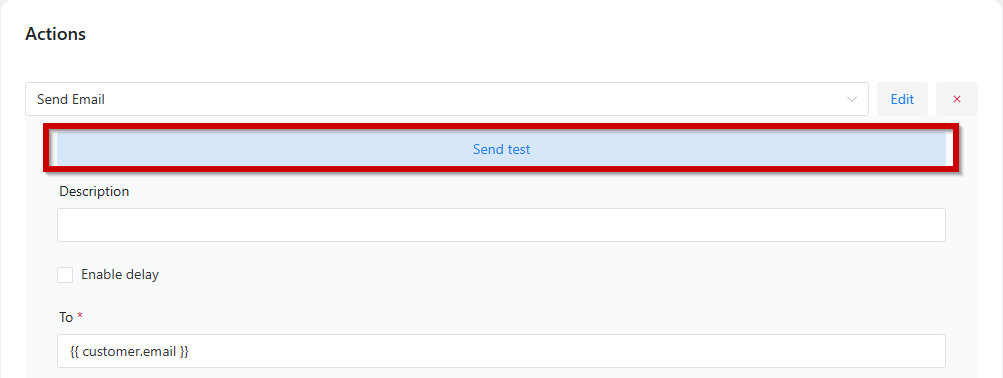
The test uses the action settings currently entered in the editor. The address entered in Email recipient replaces the action's To address for this test.
Note: The action's BCC setting still applies. If it contains an address, a copy of the test email will also be sent there.
How placeholders work during testing#
ShopMagic replaces placeholders using automatically selected test data. This can include existing customer and order records from your store, so a test email may contain real customer information.
For order placeholders, ShopMagic uses the most recent order whose status is not Refunded. If no matching order exists, it uses sample order data.
Changing Email recipient changes the delivery address only. It does not select the customer or order used to populate placeholders. Some placeholders may be empty or fail to resolve if the required data is unavailable.
What the test checks#
Send test runs the selected email action directly. It does not trigger the entire automation, evaluate its filters, or run its other actions.
If you use ShopMagic Delayed Actions, the test bypasses the configured delay and sends the email immediately.
Test executions are not recorded in Outcomes. To verify the complete automation, including its event, filters, and scheduling, trigger the configured event in a controlled test and check the resulting entry in Outcomes.
If the test email does not arrive#
If the test fails, the dialog displays an error and its possible cause. Check the message and confirm that the placeholders have the data they need.
A success message does not guarantee delivery to the inbox. If no email arrives, check the recipient address, spam folder, and your site's email delivery configuration.