





Do you want to find out how to notify your customers that their WooCommerce orders are on hold? Is your WooCommerce on-hold email not sending? Try ShopMagic and forget about any troubles related to your WooCommerce order on-hold email or other order status emails! It is a step-by-step guide in which we will use our free WooCommerce marketing automation plugin – ShopMagic.
Sometimes, WooCommerce is not sending the on-hold email nor processing order statuses emails correctly! How to handle that without hiring a programmer?
Today, I will show you how to create, send, and customize WooCommerce emails better, easier, and faster with a plugin! Let’s begin!
Table of contents
- What is the WooCommerce on-hold order?
- Send working WooCommerce on-hold order emails
- Customize all WooCommerce order status emails with ShopMagic
- Customize the WooCommerce on-hold order email in 4 steps!
- Summary & more about ShopMagic
What is the WooCommerce on-hold order?
In WooCommerce, on-hold status is triggered when the order is placed, the stock is reduced but the store is still awaiting payment. It can be connected with rare situations (at least from the EU perspective😜) when a customer is using a cheque or for example when the user chose to pay by direct bank transfer, which happens more commonly.
👉🏽 Thanks to ShopMagic, you will be available to send a customized WooCommerce on-hold order email to the customer and prevent post-purchase dissonance from happening. Sometimes, customers are not aware that there’s an issue with their payment. Not to mention that creating such an email will increase your conversions in most cases.
ShopMagic PRO £69
Free Follow-Up Emails & Marketing Automation for WooCommerce
Add to cart or View DetailsYou might say that WooCommerce has such emails and you will be right. But, have you ever tried to customize them?
You can go and try and… most likely you will be installing ShopMagic 🙂 Even in its free version, ShopMagic has quite a list of features.
ShopMagic
Free Follow-Up Emails & Marketing Automation for WooCommerce
Download for free or Go to WordPress.orgSend working WooCommerce on-hold order emails
Although this particular article is about the WooCommerce on-hold order email, let’s not forget that ShopMagic is capable of sending automated emails for every WooCommerce order status. If you want to find out more about it, check out our other guides.
Customize all WooCommerce order status emails with ShopMagic
✅ Our marketing automation plugin for WooCommerce will help you in almost every situation, which requires notifying customers. We have a bunch of guides, which describe various examples of successful email order processing in WooCommerce. Here’s a useful list:
- New Order
- Pending Order
- Processing Order
- Cancelled Order
- Completed Order
- Failed Order
- On-Hold Order (this guide)
- Refunded Order
Alrighty. Introduction done😜. We can move to our guide, wherein we will be creating a WooCommerce on-hold order email.
Customize the WooCommerce on-hold order email in 4 steps!
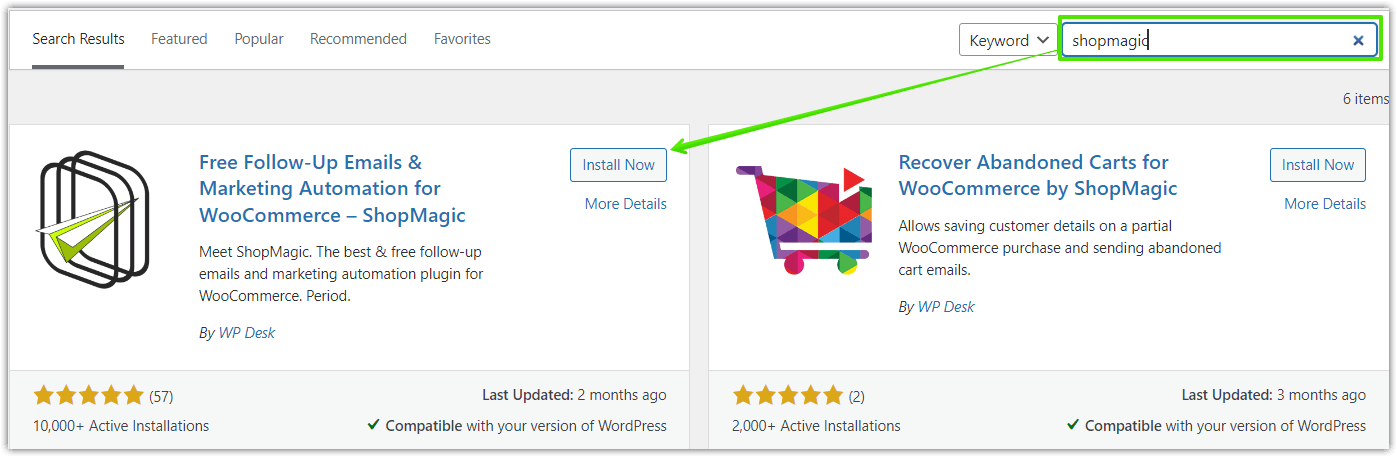
Step 1: How to install and activate ShopMagic
Installation of our plugin is a straightforward process. You can download it from WordPress.org or install it right from the plugins section in your WordPress dashboard.
Step 2: How to create an automation for WooCommerce on hold order status
ShopMagic is installed ✅, so we can move on to adding new automation. Find ShopMagic in your WordPress menu and click on the Add New button. You will see a new window, wherein we will create our new automation.
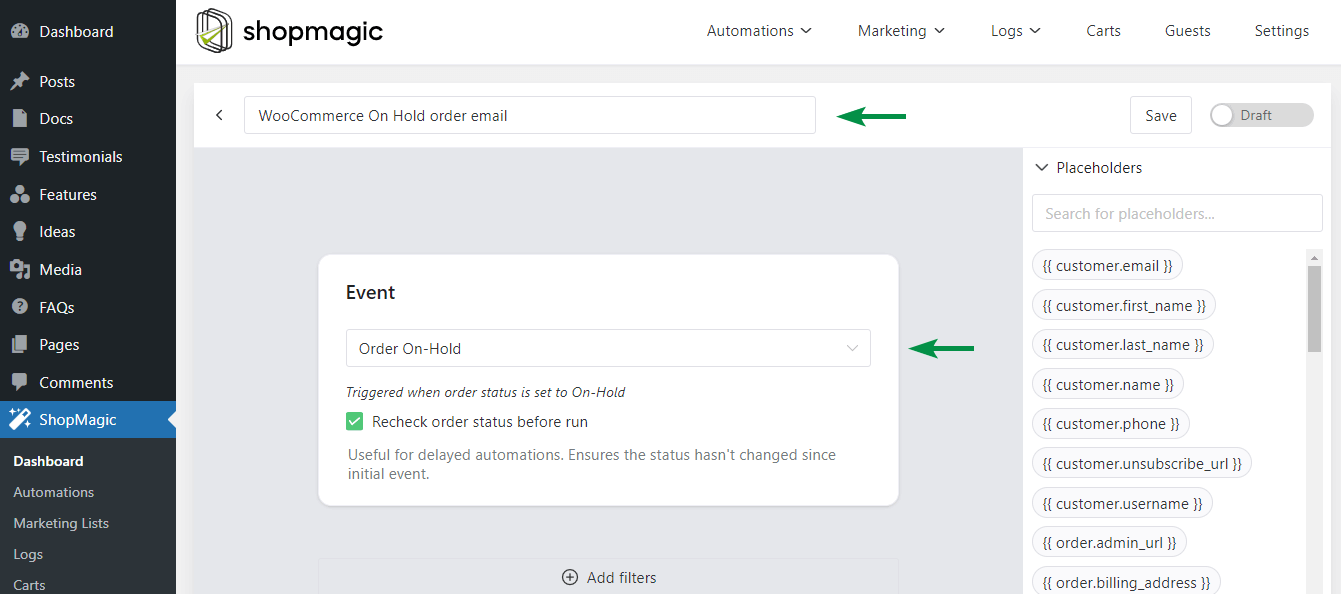
Starting from the top, add a title for your automation. It is important to add an easy to distinctive name.
👉🏽 As you can see, in my example it is a “WooCommerce On Hold order email”. From the Event dropdown menu, we are choosing Order On Hold. Rechecking the order status before our automation will run is a good idea, so I selected the checkbox.
Step 3: Assigning a filter to the ShopMagic automation (optional)
In our example we will omit this field, however, I want to pause for a minute and explain how it works.
Assigning a filter to your automation will cause such automation will fire for specified products only. You can say that it’s an introduction to customer segmentation. You can extend this feature with the Advanced Filters add-on, available in ShopMagic PRO.
Step 4: Create an action and send an email for any WooCommerce order status
👉🏽 Now is the time to finish our automation and create an Action.
First, take a moment and look at the screenshot below. You will see, how your order on hold automation will look like when we finish:
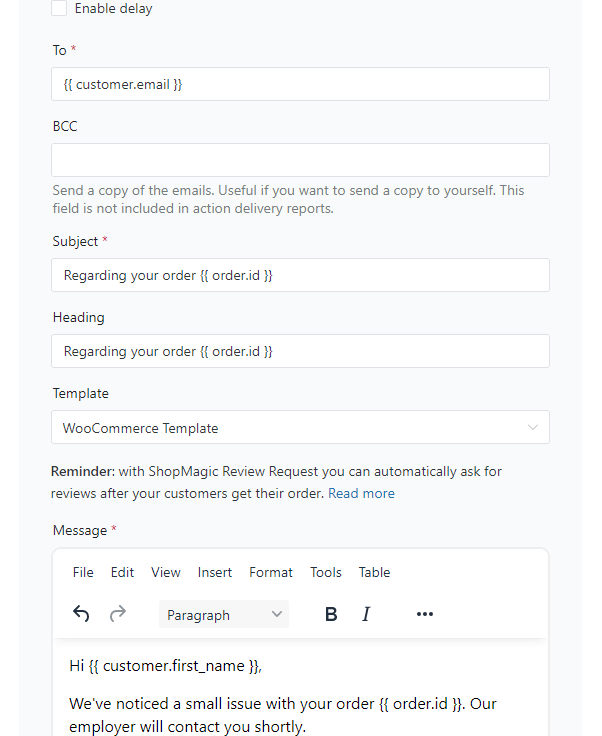
We need to select a type of action, which in our case will be Send Email. Right after that, we will write a “name” for our action. Similar to the automation’s description, it’s for your reference only. I chose “WooCommerce On Hold order email”.
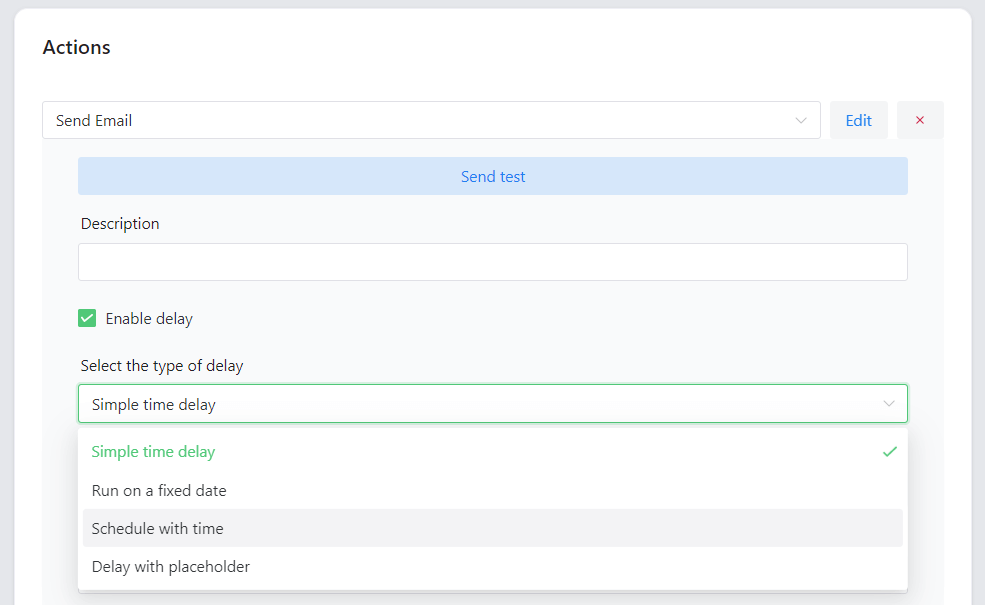
Field To, as its name says is to add a recipient. By default, it will use one of the placeholders {{ customer.email }}.
The two next fields are Subject and Heading. You can use them to gain the attention of your customers.
Field Template, has a default setting also. It is a WooCommerce template. We won’t be modifying it in our guide.
The last field is for the Message. Here you can customize your information for the customer. You can make use of placeholders in the message field if you want.
Under the message field is the unsubscribe checkbox. It is connected with the marketing communication issue. You can read more about it in our article about creating Marketing opt-ins and Lists in WooCommerce.
We did it 🎉! WooCommerce On Hold order email ready to use
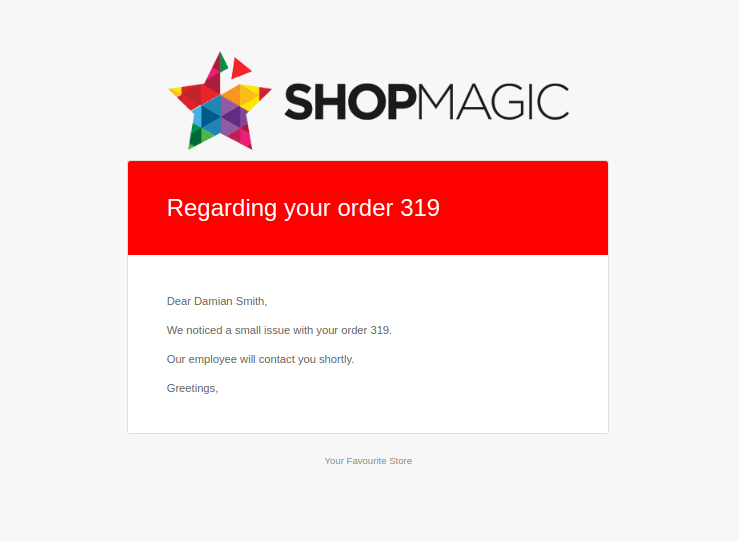
It wasn’t that hard don’t you think 😜? If you want to preview how it might look like, check mine:
Let us know what you think and how your message for the WooCommerce on-hold order email will look.
Summary & more about ShopMagic
Today, you’ve learned how to customize emails for all WooCommerce order statuses, especially on-hold orders.
I encourage you to download ShopMagic and start building successful email marketing in WordPress & WooCommerce today!
ShopMagic
Free Follow-Up Emails & Marketing Automation for WooCommerce
Download for free or Go to WordPress.orgIf you have any other questions, do not hesitate and contact us.
Finally, read more about the plugin on our blog and the articles below in particular!
Related to WooCommerce order on-hold emails
-
Post Purchase Dissonance explained

How to Beat Post-Purchase Dissonance in eCommerce. Find out how to use ShopMagic in fighting post-purchase dissonance in eCommerce. -
WooCommerce emails guide [2023]

WooCommerce emails explained. In this article we tell you all there is to know about sending and customizing WooCommerce order emails.
