



How ShopMagic processes actions#
By default, ShopMagic uses Action Scheduler to process automation actions in the background. When an event occurs, such as an order being placed, its actions are added to the queue.
This keeps tasks such as sending emails outside the original request, reducing the work performed during checkout or other customer interactions.
Actions without a configured delay are queued to run as soon as possible. There is no guaranteed execution time: processing depends on WP-Cron, background requests, server resources, and the number of pending tasks.
If actions remain pending for an unusually long time, check ShopMagic → Logs → Queue and your site's cron and Action Scheduler configuration.
Skipping the queue#
The shopmagic/core/queue/avoid_queue filter lets you execute actions during the request that triggers the event instead of adding them to the default queue.
This can be useful for selected transactional automations. However, synchronous actions add processing time to the original request. External API calls or email delivery problems may therefore slow down checkout, registration, or other operations.
Add the relevant snippet to a custom plugin or your child theme's functions.php file. When adding it inside an existing PHP block, do not add another <?php opening tag. Test the change on a staging site first.
Important: These snippets affect actions handled by ShopMagic's default execution strategy. Actions with an enabled Delayed Actions schedule use a separate strategy and remain scheduled. Existing queue entries are not changed.
Skip the default queue for all automations#
add_filter( 'shopmagic/core/queue/avoid_queue', '__return_true' );Use this option only if you intend to process all eligible actions synchronously.
Skip the queue for one automation#
This example skips the default queue for automation ID 99. Replace 99 with your automation's ID.
add_filter(
    'shopmagic/core/queue/avoid_queue',
    function ( $avoid_queue, $automation ) {
        if ( (int) $automation->get_id() === 99 ) {
            return true;
        }

        return $avoid_queue;
    },
    10,
    2
);
You can find the automation ID in the URL when editing the automation.
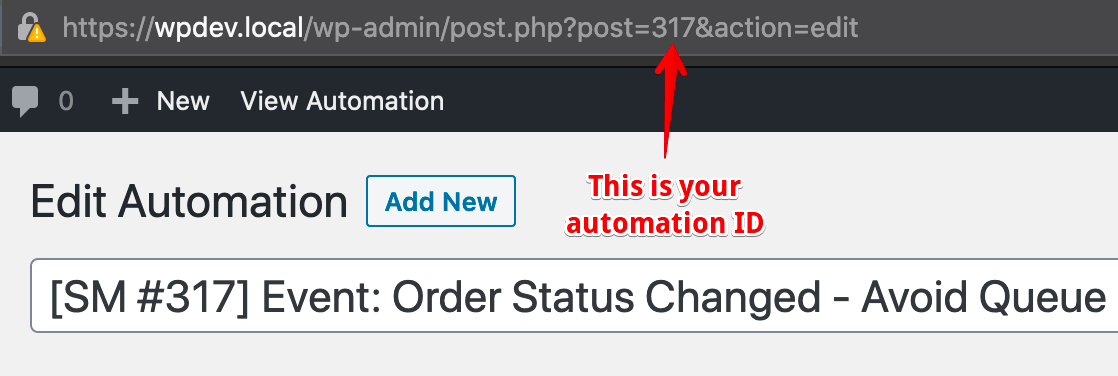
Skip the queue for a specific event#
This example processes actions synchronously for the Customer Account Created event:
add_filter(
    'shopmagic/core/queue/avoid_queue',
    function ( $avoid_queue, $automation, $event ) {
        if ( $event->get_id() === 'shopmagic_new_account_event' ) {
            return true;
        }

        return $avoid_queue;
    },
    10,
    3
);
This applies to every automation using that event, except actions handled by a separate scheduling strategy.
Skip the queue for a specific action type#
This example processes the standard Send Email action synchronously:
add_filter(
    'shopmagic/core/queue/avoid_queue',
    function ( $avoid_queue, $automation, $event, $action ) {
        if ( $action->get_id() === 'shopmagic_sendemail_action' ) {
            return true;
        }

        return $avoid_queue;
    },
    10,
    4
);
The Plain Text and Raw HTML email actions have different identifiers and are not included in this example.
Custom scheduling with Delayed Actions#
The ShopMagic Delayed Actions add-on provides several scheduling options, including Delay with placeholder. Check whether these options meet your needs before adding custom code.
For custom scheduling logic, use shopmagic/delayed_actions/delay_timestamp. The filter receives:
- Timestamp: the Unix timestamp calculated from the action's delay settings.
- Action fields: a container containing the saved action settings.
- Provided data: a ShopMagic
DataLayerobject containing the resources supplied by the event.
The callback must return an absolute Unix timestamp in seconds, not a number of seconds to wait. Register it with three accepted arguments.
Example: schedule an email using product metadata#
The following example applies only to delayed email actions whose saved subject is exactly Hello, new customer. It reads my_custom_product_meta from products in the order and uses the first valid future Unix timestamp it finds.
The metadata must already exist on the product or purchased variation and contain an integer Unix timestamp in seconds. This snippet does not create a field for entering it.
add_filter(
    'shopmagic/delayed_actions/delay_timestamp',
    function (
        int $timestamp,
        \ShopMagicVendor\Psr\Container\ContainerInterface $action_fields,
        \WPDesk\ShopMagic\Workflow\Event\DataLayer $provided_data
    ): int {
        if (
            ! $action_fields->has( 'subject_value' )
            || $action_fields->get( 'subject_value' ) !== 'Hello, new customer'
            || ! $provided_data->has( \WC_Order::class )
        ) {
            return $timestamp;
        }

        $order = $provided_data->get( \WC_Order::class );

        foreach ( $order->get_items( 'line_item' ) as $item ) {
            if ( ! $item instanceof \WC_Order_Item_Product ) {
                continue;
            }

            $product = $item->get_product();

            if ( ! $product instanceof \WC_Product ) {
                continue;
            }

            $value = $product->get_meta(
                'my_custom_product_meta',
                true
            );

            if ( ! is_string( $value ) && ! is_int( $value ) ) {
                continue;
            }

            $custom_timestamp = filter_var(
                $value,
                FILTER_VALIDATE_INT,
                array(
                    'options' => array(
                        'min_range' => time() + 1,
                    ),
                )
            );

            if ( $custom_timestamp !== false ) {
                return $custom_timestamp;
            }
        }

        return $timestamp;
    },
    10,
    3
);
Enable Enable delay and configure a valid delay type on the action before using this filter. If order data or a valid future metadata value is missing, the example keeps the timestamp calculated by Delayed Actions.
The subject comparison uses the saved text before placeholder replacement. For variable products, the example reads metadata from the purchased variation; it does not fall back to the parent product.
Important: This filter runs after Delayed Actions calculates the schedule, including its Active days adjustment. Returning a different timestamp can override that adjustment. Include any weekday restrictions in your custom logic if required.
The filter affects newly scheduled executions only. It does not reschedule existing queue entries, and the returned time remains subject to Action Scheduler processing.
Removing the customization#
Remove the relevant snippet to restore the default behavior for future executions. Review existing entries in Queue separately, because removing a filter does not cancel or reschedule them.