





In this guide, we will create a special WooCommerce follow-up email. It will be sent to your customers one year after the initial purchase. I’ll show you how to create such an email in ShopMagic. Ladies and gentlemen, here’s WooCommerce purchase anniversary email.
ShopMagic will increase your conversion rate
ShopMagic is marketing automation plugin. It works great when it comes to automate some repetitive tasks, which needs to be done in every WooCommerce store. However, thanks to the add-ons which we are developing, ShopMagic is constantly extending its functionalities. With Delayed Actions and Review Requests you will increase conversion rate. Manual Actions will improve your communication with customers. You can even integrate your store with WooCommerce Subscriptions!
Currently, over 10,000 WooCommerce stores worldwide, use ShopMagic on a daily basis. Not only to send WooCommerce purchase anniversary email.

ShopMagic is also available for free
If your only goal, is to send better follow-up emails, free version of ShopMagic will be sufficient. As a nice addition, you will be able to send follow-up emails for all of the WooCommerce order statuses, including Order Pending. Above all, it’s very important, because WooCommerce does not support this particular status.
ShopMagic
Free Follow-Up Emails & Marketing Automation for WooCommerce
Download for free or Go to WordPress.orgShopMagic. Not only for WooCommerce purchase anniversary email
Before we will move to the guide and create a WooCommerce purchase anniversary email, take a look at the list of our guides. These articles cover all of the WooCommerce order statuses. Every guide has a similar step-by-step construction. Select whichever you want and create follow-up email in no time:
How to install and activate ShopMagic?
Firstly, you need to install and activate ShopMagic. You can download it from the WordPress website or directly from the Plugins section in your dashboard. After installation, simply click on Activate. As you can see, the whole process is similar to any other plugin.

Creating a new WooCommerce automation
It’s time to create a new automation. Find ShopMagic in your dashboard and click on Add New. You will see a new window where you will be able to set a title and select an Event type. Writing an easy to distinguish title is very good practice. As you can see in my example, I chose to title mine as “WooCommerce purchase anniversary email”.
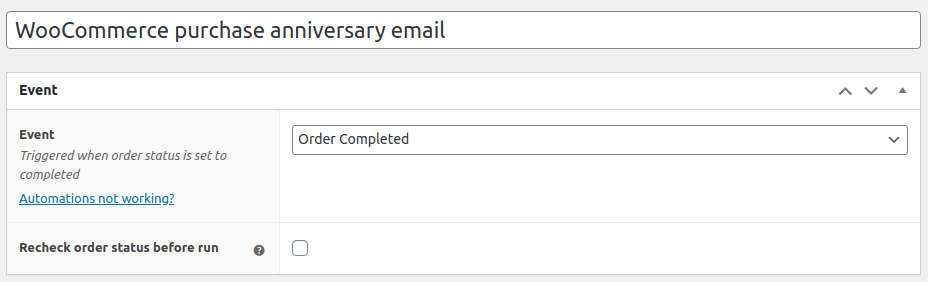
For an event, select Order Completed. Do not forget to select the option to Recheck the order status. Very useful, especially in long-term automations like the one from this guide.
Assigning filter for WooCommerce purchase anniversary email
Optional step, yet very important. Here you can decide which customer will receive the follow-up email . I’ll leave it intact but remember that ShopMagic has tons of configuration options available in the Filter. If you are interested in this topic, check Advanced Filters add-on.
Creating an action to send purchase anniversary email
Following the popular adage, which says that a picture is worth thousands of words, here’s a screenshot with my configuration:
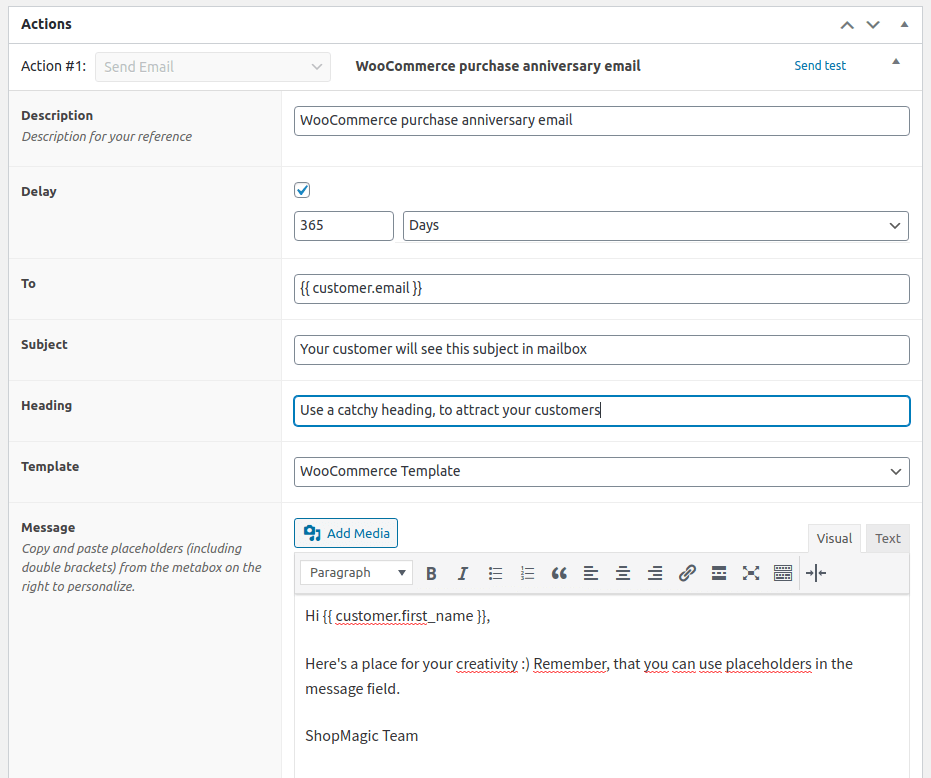
Firstly, Action and it’s type. Choose from Send email, Raw HTML email, plain text, add customer to MailChimp list and Slack post.
Next one is Description – How you describe your automation? It’s entirely up to you.
Now it’s time to Delay an email – Core feature in our example. We are creating a WooCommerce purchase anniversary email, which will be delayed for 365 days.
HINT: You can easily set different delay time with ShopMagic. Simply, change the number of days (or weeks) in Delay field.
To – Prefilled with placeholder { customer.email }. Here you can set an email’s recipient.
Subject & Heading – Self explanatory. Type subject and heading of your choice. You can use placeholders.
Message – Field for your message to the customer. Use placeholders and link to your social media in this field.
Unsubscribe link – Adds an unsubscribe link in the message’s footer.
WooCommerce purchase anniversary email is ready!
Now, we just have to wait a year until we see how our email will look like.
I’m kidding 😉 This is why we have a Send test feature in ShopMagic. Simply click on it, enter an email and voilà!
To summarize, what’s your opinion on WooCommerce purchase anniversary email? Will you use such an WooCommerce automation in your store? Let us know.
