



Importing and exporting automations#
ShopMagic includes built-in options to import and export automations as JSON files. Use them to copy automations between stores, move configurations between staging and production sites, or share an automation with support for troubleshooting.
Before transferring automations#
Use compatible versions of ShopMagic and its add-ons on both sites. Using the same versions helps avoid differences in available features and configuration formats.
On the destination site, install and activate every plugin required by the automation's events, filters, actions, and placeholders. For example, an automation using delayed actions requires the Delayed Actions add-on.
Important: The exported file includes the automation's publication status. A published automation can therefore be active immediately after import. To review the configuration before it runs, export it as a draft.
Exporting an automation#
- Go to ShopMagic → Automations.
- Find the automation you want to export.
- Click its Export control, shown as a download icon.
- Save the downloaded JSON file.
To export multiple automations, select their checkboxes, choose Export from the bulk actions dropdown, and click Execute. The export contains the selected automations in one JSON file.
Importing automations#
- On the destination site, go to ShopMagic → Automations.
- Click Import to display the upload form.
- Select the JSON file exported from ShopMagic.
- Click Import automation.
- Check the automations list and open each imported automation to review its settings and publication status.
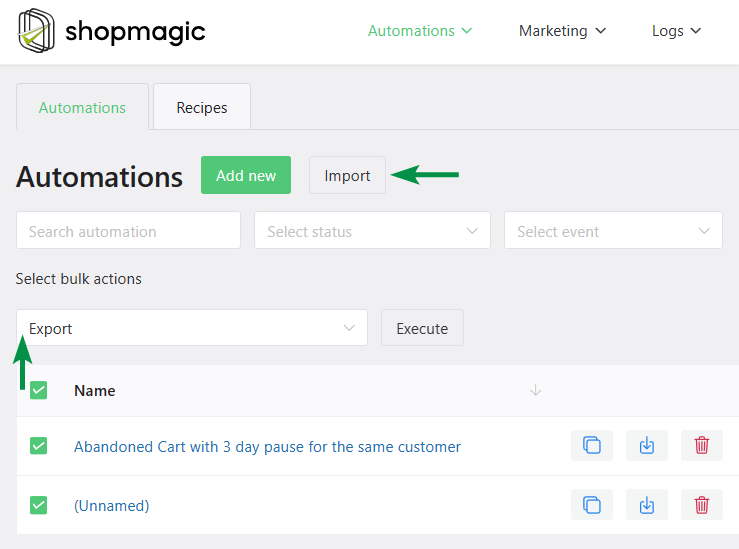
Importing a standard ShopMagic export creates new automations. It does not update existing automations with matching names. Importing the same file again can create duplicates.
What the JSON file contains#
The export contains the automation configuration, including its name, description, publication status, event settings, filters, actions, and message content.
It does not transfer execution history, queued actions, customer records, orders, or global ShopMagic settings. External service connections and API credentials saved in plugin settings must be configured separately on the destination site.
Images and attachments are not bundled into the JSON file. Their saved references may still point to the source site.
What to check after importing#
- Store-specific selections: reselect products, categories, lists, membership plans, and other records referenced by the automation. Their IDs may differ between sites.
- External integrations: configure the required connections and check selected audiences, groups, spreadsheets, or channels.
- Email content: review recipient addresses, BCC addresses, links, images, and PDF attachments.
- Scheduling: review delays and date settings, especially when transferring an automation from a staging site.
- Translated automations: verify language settings and links to parent automations, since automation IDs can change during transfer.
For email actions, use Send test to check the message. Then verify the complete automation with a controlled event before using it for customers.
If an import fails, confirm that the file contains valid ShopMagic JSON and that all required plugins are active. Renaming a different file type to .json does not make it a valid automation export.