



How to disable WooCommerce emails (notifications)#
If a ShopMagic automation and a WooCommerce notification respond to the same order event, the recipient may receive two emails. For example, a ShopMagic automation using Order Completed can send a message alongside WooCommerce's Completed order email.
To avoid duplicate messages, disable the specific WooCommerce notification you are replacing. Keep other notifications enabled unless you have configured replacements for them.
Check the recipient: WooCommerce's New order email goes to configured store recipients, usually the administrator. Notifications such as Order on-hold, Processing order, and Completed order go to customers.
Example: disable the Order on-hold email#
- Go to WooCommerce → Settings → Emails.
- Find Order on-hold and click Manage.
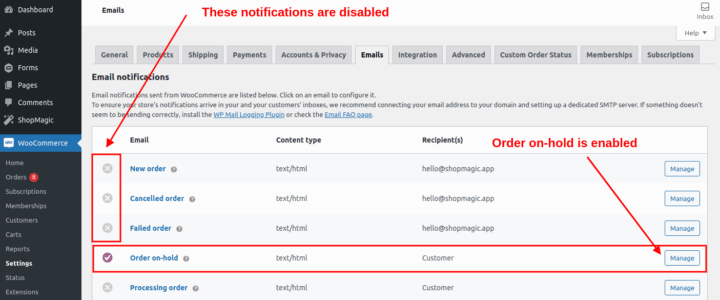
- Find the Enable/Disable setting.
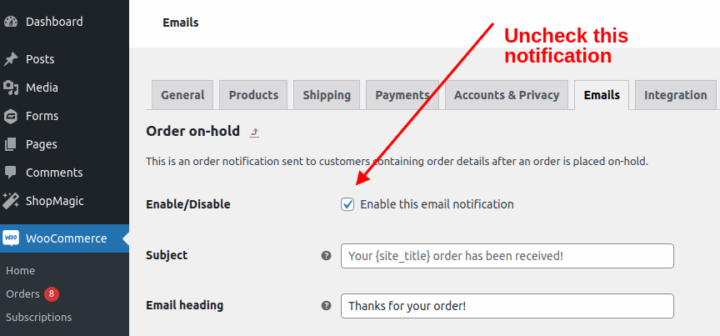
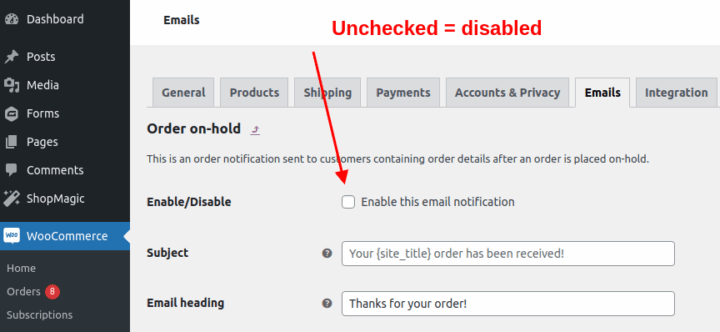
- Clear Enable this email notification.
- Click Save changes.
Return to the email list to check that the notification is disabled.
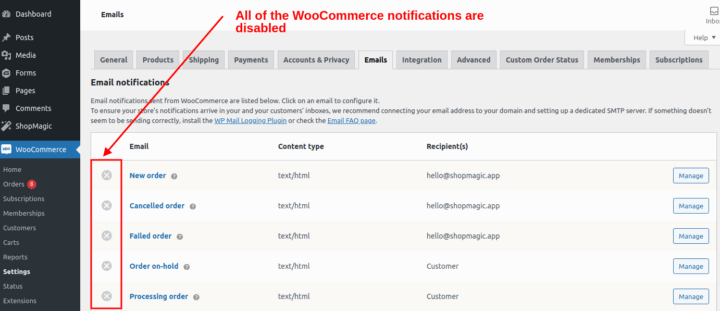
The screenshots show an earlier WooCommerce interface. The layout may differ in your version.
Check your ShopMagic replacement#
Disabling a WooCommerce notification does not disable the corresponding ShopMagic automation. Confirm that your replacement is published, uses the intended event and recipient, and includes the information customers need.
Use Send test to check the email content, then verify the complete automation with a controlled order event.
You can repeat this process for other automatic WooCommerce emails that provide an enable/disable setting. The manually sent Order Details email does not have this option.