





One of the most popular ShopMagic PRO features is an option to delay an email. You could (still can!) delay your email for a specified number of minutes, hours, days, or weeks. However, we felt that our plugin is missing an essential ability – to schedule emails in WordPress and WooCommerce. Well, not anymore. Here’s a brief guide to scheduling emails in WooCommerce with an email scheduler.
You can’t send delayed emails or manage the email schedule in WordPress and WooCommerce!
Today, you’ll learn how to use the ShopMagic plugin to create, customize, send, and delay emails in WordPress and WooCommerce. Let’s begin!
Table of contents
- WordPress schedule emails
- How does a WooCommerce email scheduler work?
- WooCommerce email schedule. How to do it?
- WooCommerce delayed emails with a placeholder
- Summary & more about ShopMagic
WordPress Schedule Emails…
with ShopMagic Delayed Actions!
ShopMagic Delayed Actions: the WooCommerce email scheduler you need
WooCommerce delayed emails made simple. ShopMagic will schedule emails in WordPress (WooCommerce included).
Add to cart or View DetailsBoth, delaying and scheduling emails are available in the ShopMagic Delayed Actions add-on. It is part of ShopMagic PRO. If you have it, you not only have access to delaying and scheduling emails but nine other premium add-ons.
⭐ ShopMagic PRO, on the other hand, is a collection of more than a dozen add-ons to the basic version. You buy the whole bundle of add-ons at once, and you pay only once. Check them out.
How does a WooCommerce email scheduler work?
Before we will move to schedule emails, I’ll briefly explain how delay works, as it is a similar process. Once ShopMagic Delayed Actions is installed and activated, you’ll see a new field in your automation:
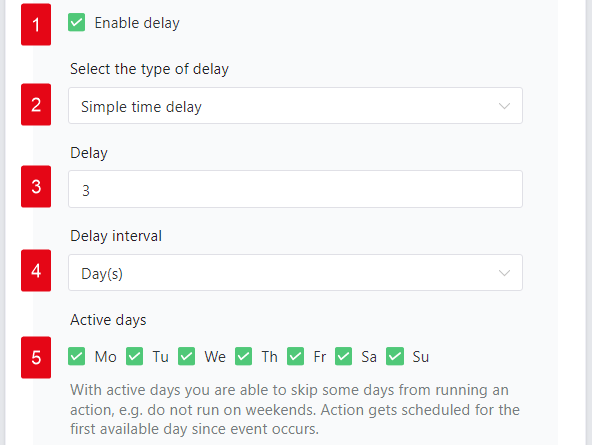
Here you can enable delay (1). For a standard delay, select a simple time delay from a dropdown list (2). Now you can set a value (3) and time interval (4). Finally, you can set days, when your automation will be active (5). Unselecting a specified day will result in not triggering automation on it.
With ShopMagic PRO & Delayed Actions 3.0 you can, for example:
- Schedule your email for a specified date.
- Run automation on fixed days.
- Specify delay interval (daily, weekly, monthly, or yearly).
- Set a starting (initial) date for your automation.
👉 Once triggered, your automation will be added to ShopMagic’s queue:
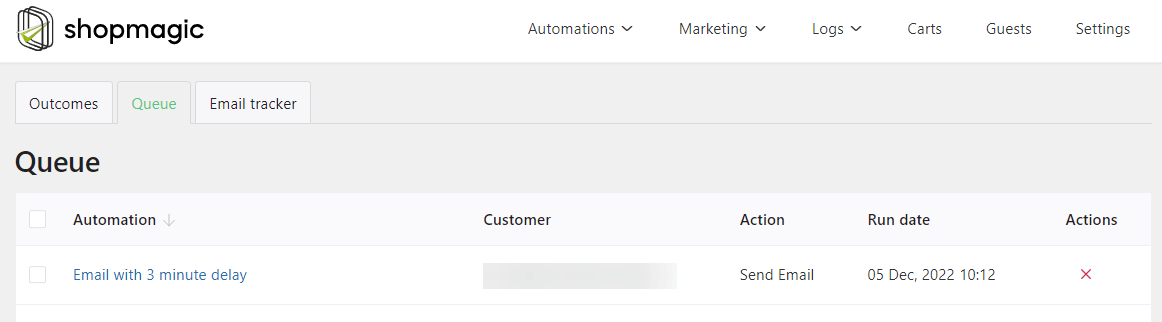
Here you can check when it will be sent to the customer, as there’s a future date added to the logs [Run date]. You can also manually cancel your email if you have to [Actions].
WooCommerce email schedule. How to do it?
Scheduling emails in WooCommerce is similar to delaying. However, this time you are specifying a time when your automation should run.
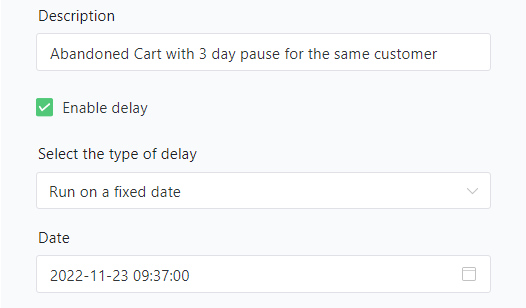
That way, you can plan and create your emails, and leave the rest to ShopMagic, as it will start sending emails on a fixed date. There’s also another option, which is a schedule with time only a delay:

There are moments when you don’t have any specific date in mind, but you’d rather not email your customer in the middle of the night. By selecting the time of delay, you can ensure, that automation is executed no more than once a day, on the selected hour.
In each of the above-mentioned WooCommerce scheduling emails, you can use active days settings, and decide which days your automation should run, and which shouldn’t.
WooCommerce delayed emails with a placeholder
Delaying with placeholders is possibly the most powerful setting for special use cases, thanks to the underlying mechanism of the PHP language. Our date-related placeholders can be referenced here with specific time modifications, based on PHP documentation for relative date formats:
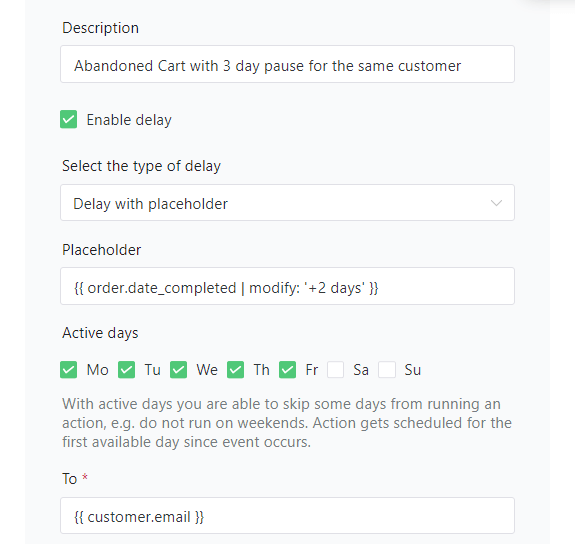
Advanced usage of placeholders for delay
Besides the above placeholders, you can also rely on any meta fields stored with your order, product or subscription, etc. (with correct usage, i.e. no subscription data is stored in the order-based event). The only requirement is that the placeholder returns a date parsable by the PHP DateTime class constructor, according to PHP-supported date and time formats. This enables you a world of possibilities, as your meta field can contain values such as the first day of the next month or similar complex formats.
Summary & more about ShopMagic
That’s it in terms of WordPress schedule emails
As you can see, delaying and scheduling emails in WooCommerce may be super easy. All you need to do is to get the ShopMagic Delayed Actions Add0n.
ShopMagic Delayed Actions: the WooCommerce email scheduler you need
WooCommerce delayed emails made simple. ShopMagic will schedule emails in WordPress (WooCommerce included).
Add to cart or View DetailsShopMagic covers all of how you can delay or schedule your email communication.
Let us know what you think about it. Maybe you have a special use case? We are eager to find out what is it.
More about WordPress schedule emails
-
WooCommerce Manual Emails

Send emails manually. Find out how to send WooCommerce emails manually with ShopMagic. -
WooCommerce raw HTML email template

HTML email template. Create emails in raw HTML. Customize them according to your needs.
