




Learn how to build a successful email marketing automation in WordPress and WooCommerce with Contact Form 7 free integration for ShopMagic! In this article, you’ll also see how to use a free & professional email plugin with Contact Form 7. Combine forms and email customizer to send personalized emails in WordPress and WooCommerce!
Is CF7 not sending emails from time to time? Wouldn’t be nice to avoid manual work for handling Contact Form 7 entries & respond to them automatically with custom emails?
But, it’s easy to turn Contact Form 7 into a successful email marketing suite with the ShopMagic Contact Form 7 integration for WooCommerce. Automated emails in WordPress and WooCommerce for free!
ShopMagic
A free integration for Contact Form 7 & WooCommerce email marketing solution. Customize emails, create follow-ups, build newsletter campaigns, and more! Try it out, it's free!
Download for free or Go to WordPress.orgContact Form 7 and ShopMagic – what’s inside?
You can create, customize, and send automated emails for Contact Form 7 entries and more.
ShopMagic is also multilingual:

OK, let’s see how to use ShopMagic and its free integration for Contact Form 7!
Table of contents
- How ShopMagic for Contact Form 7 works?
- About WooCommerce Contact Form 7: Emails
- Contact Form 7 email settings
- Extend CF7 with email marketing capabilities
- Contact Form 7 WooCommerce integration – Quick Start
- Where to use WooCommerce Contact Form 7?
- Summary & more about ShopMagic
How ShopMagic for Contact Form 7 works?
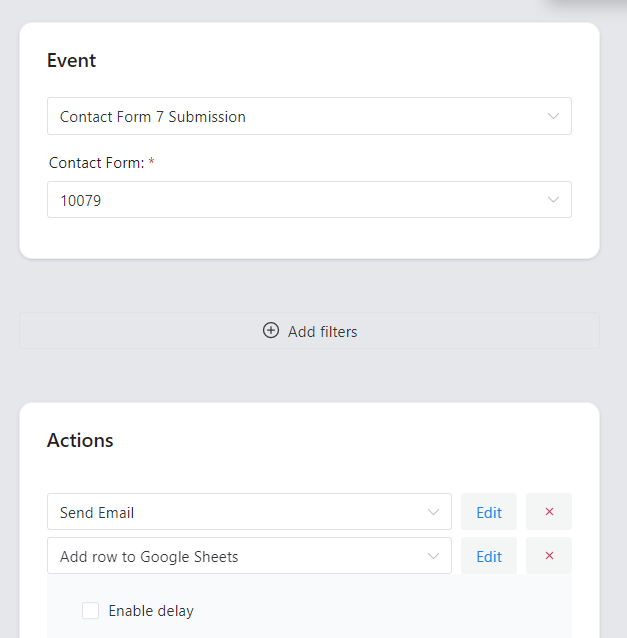
This plugin lets you use Contact Form 7 submissions directly in your automation. For example, you can automatically add the email address submitted in the form to the MailChimp list or, reversely, create a follow-up email to the email left by the website user.
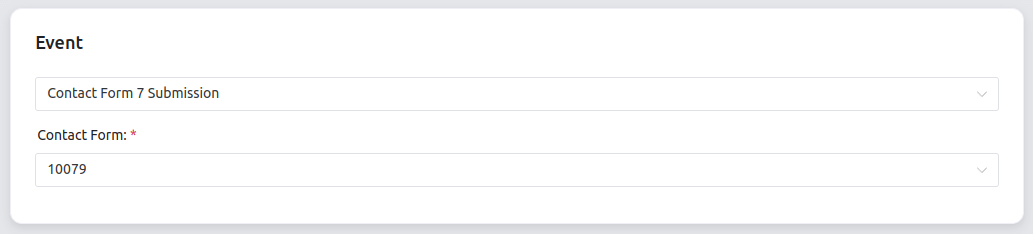
Our plugin will automatically store necessary data, so no need to use other plugins for it.
This integration adds a new event, and some new placeholders, which will let you intercept all of the data submitted in CF7 to ShopMagic. You can read more about them (and the whole new possibilities of this integration) in the plugin documentation.
ShopMagic for Contact Form 7 is available for free
💡 Bear in mind that this add-on requires the ShopMagic plugin →
About WooCommerce Contact Form 7: Emails
Probably the most frequent use for Contact Form 7 in WooCommerce is placing forms and connecting you with people. The plugin is incredibly versatile and kind of genius in its simplicity – it does just one thing but does it very well.
You can also use it on WooCommerce pages. No complications or unnecessary configuration. But, sometimes CF7 is not sending emails and you can’t customize the content based on filters, conditions, or delay emails.
🤔 Where do the CF7 emails go?
Instead of storing data in your database, CF7 just passes it straight to the email recipient – no “middlemen”.
Many WordPress plugins and WooCommerce extensions are indeed well known for their ability to clog up your database with gazillions of records.
But, you may expect that a plugin involved with filling forms and sending emails will store the customers’ data and/or message content somewhere in the database.
👉🏼 Here’s where CF7 is different.
The Contact Form’s approach is great for your database hygiene and keeping your website light, but might be limiting your marketing and customer research potential.
But, sometimes there may be an error and CF7 is not sending emails properly. Let’s see the plugin email settings.
Contact Form 7 email settings
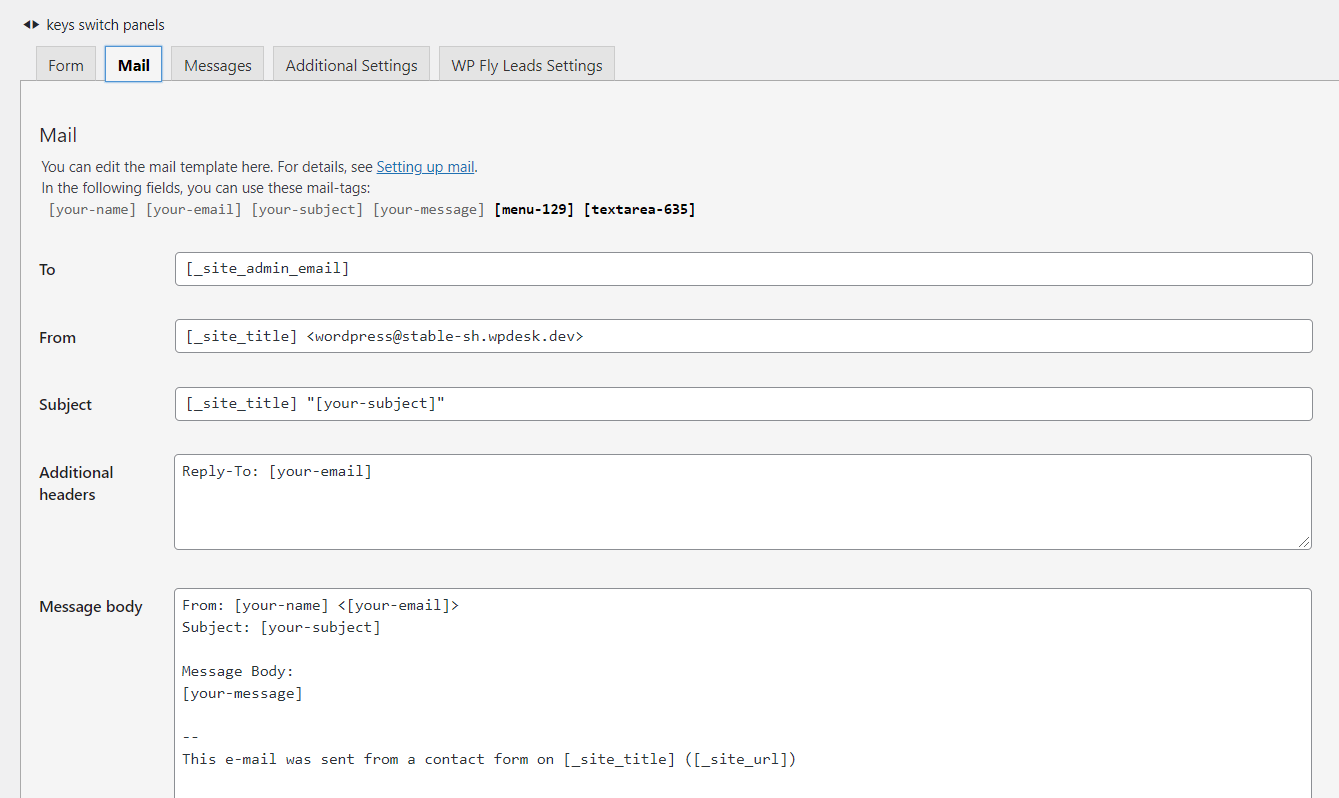
All CF7 email settings are placed in the Mail tab in the Contact menu in your WordPress dashboard, added by Contact Form 7.
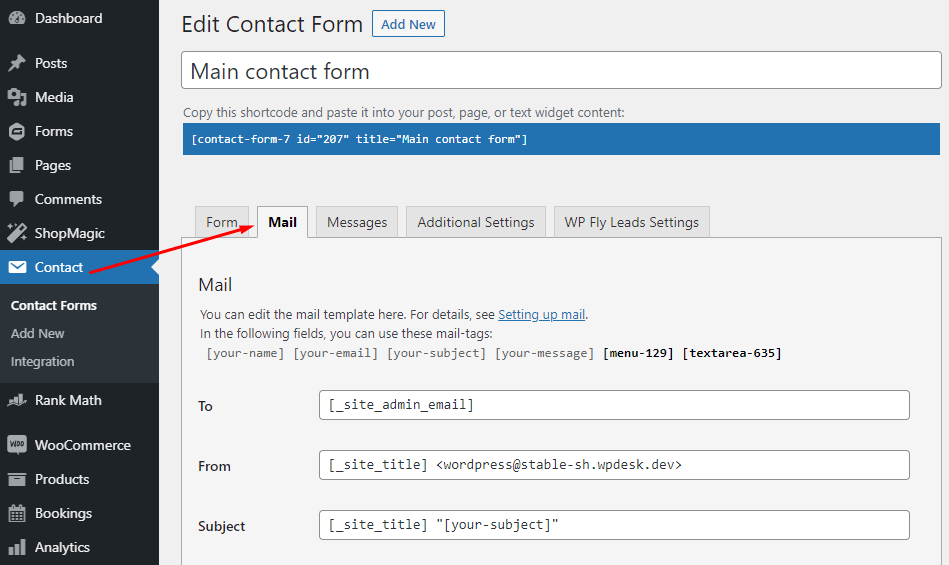
A list of all settings related to emails in CF7
Mail tab
- To – set the recipient’s email address
- From – set the email sender name that appears in your inbox
- Subject – set the email subject
- Additional headers – additional email settings, like specifying the reply-to email address or adding BCC email addresses
- Message body – actual email content that will be sent to your recipients
- [Checkbox] Use HTML content type – enables HTML support in your messages
- File attachments – if you’re using attachments in your forms, you can also add them to messages
- [Checkbox] Use Mail 2 – enable sending the second email that can be used as an autoresponder (by default it’s set to your customer’s email)
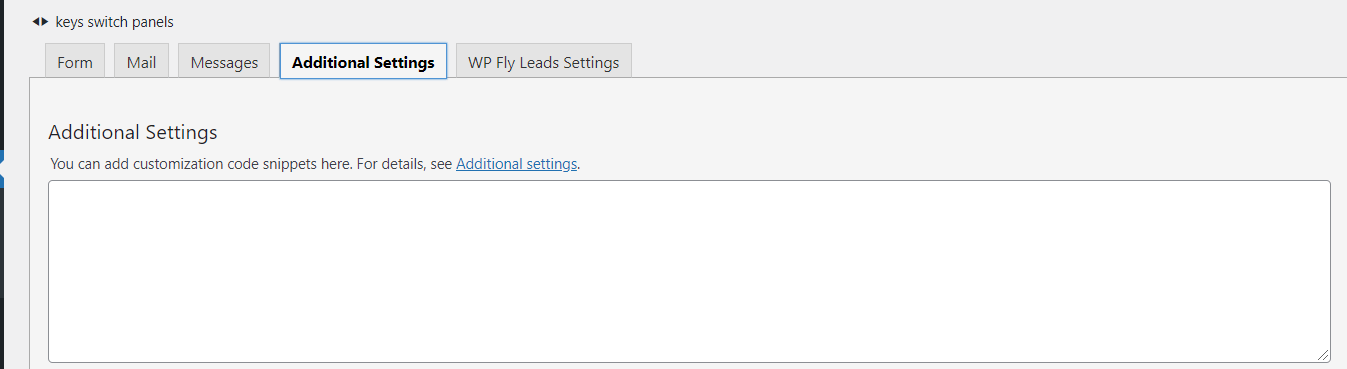
Additional Settings tab
Although it isn’t created strictly for changing how emails work in CF7, it provides several email-related options.
⬇️ Here are the code snippets that can affect your messages: ⬇️
- demo_mode: on – turns on the demo mode for the chosen form. After turning it on, the only action that will happen after submitting the form will be displaying the “completed successfully” message. It also disables storing form submissions with the Flamingo plugin.
- skip_mail: on – disable sending messages after successful form submission. This setting doesn’t affect other services like Flamingo.
- do_not_store – stops other services (like Flamingo) from storing your submitted forms’ data.
Extend CF7 with email marketing capabilities
Below you will see how to enable extra marketing opportunities with the ShopMagic free plugin!
Contact Form 7
A free integration for Contact Form 7 & WooCommerce email marketing solution. Customize emails, create follow-ups, build newsletter campaigns, and more! Try it out, it's free!
Download for free or Go to WordPress.orgHow to add formatting in Contact Form 7
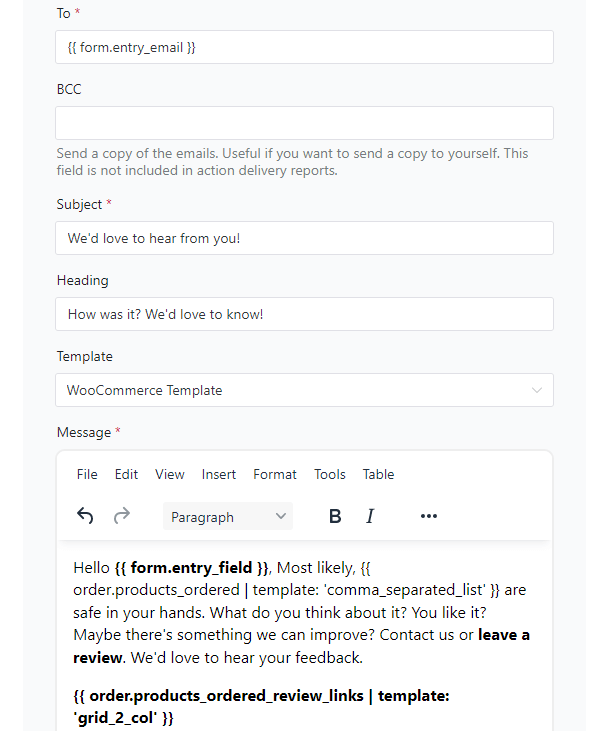
✅ First, if you’re using the ShopMagic plugin for Contact Form 7 (Contact Form 7 WooCommerce integration), you can easily format your messages just like you would in Word, Google Docs, or a regular WordPress post with a built-in editor.
While it’s not strictly a marketing feature, proper formatting can do wonders for your email readability and brand perception.
Here is what a formatted message and an editor look like with ShopMagic:
👉🏼 And here’s how it looks like without the formatting options and a WYSIWYG editor (if you like to see the source code):

Not easy to read or edit, right 😉?
Contact Form 7 WooCommerce integration – Quick Start
👉🏼 Although CF7 supports HTML in its email messages, it might be hard to use if you’re not at least comfortable writing HTML.
That’s because CF7 doesn’t offer any WYSIWYG editor, so any HTML tags you use will appear as… well, only HTML tags 🤯.
Or you can use the Contact Form 7 + ShopMagic email marketing tool, which will help you in converting subscribers into WooCommerce customers.
Contact Form 7
A free integration for Contact Form 7 & WooCommerce email marketing solution. Customize emails, create follow-ups, build newsletter campaigns, and more! Try it out, it's free!
Download for free or Go to WordPress.orgOnce you install and activate Contact Form 7 WooCommerce integration you will be able to:
1️⃣ Use your WooCommerce templates
Keeping your communication and brand assets consistent is crucial. Especially if you want to be seen as professional and differentiate yourself from your competition.
Do your emails sent after form submission and after transactional emails look different? Or worse, is CF7 not sending emails at all?
👉🏼 That’s what may happen if you’re using default CF7 emails in your WooCommerce store.
If it will, then you are losing an opportunity to improve your brand recognition and reduce cognitive friction for your customers.
👍🏾 ShopMagic, on the other hand, lets you use the same WooCommerce template you’re using for transactional emails, like email after order.
2️⃣ Create follow-up sequences
✅ Follow-up emails are great to keep up communication and understand your customers. The fastest way to add a follow-up message (or a whole sequence) is to use a WooCommerce email marketing plugin integration for Contact Form 7 which lets you trigger messages after form submissions.
✅ Send follow-up emails with ShopMagic after a Contact Form 7 submission:
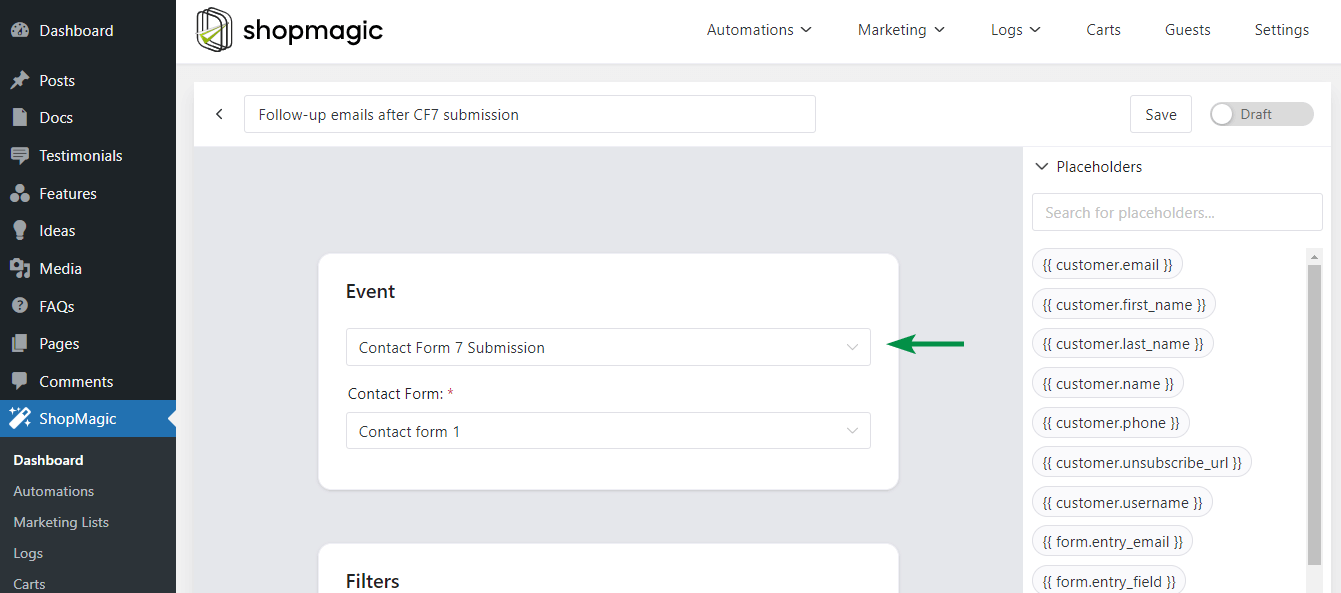
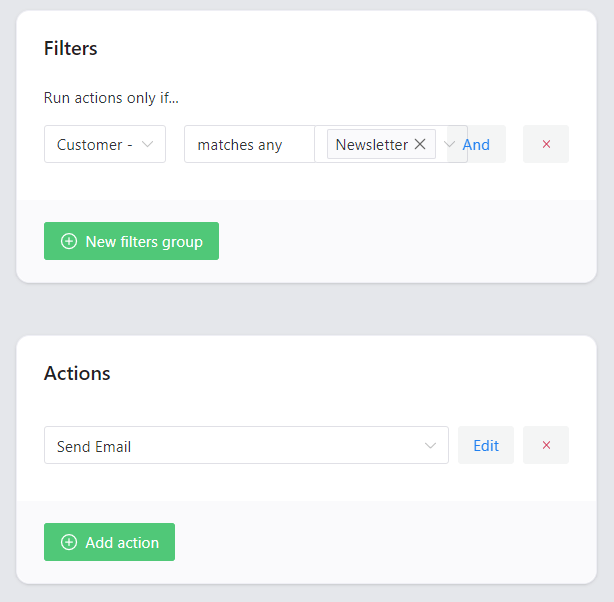
✅ Choose the filters to send emails for specific users and actions like email or adding CF7 entries to WooCommerce email lists – all-in-one integration:
Where to use WooCommerce Contact Form 7?
You can use forms to know your customers better and allow them to ask questions directly, even outside your regular contact page.
Placing contact forms on the following pages is a great way to use their potential for marketing.
-
Product page
WooCommerce product pages should be one of your priorities when it comes to optimizing for conversions. Because one of the worst conversion killers is uncertainty. That’s what your customers might feel when they are presented with not enough data about your product.
➡️ You may be sure that if it happens, they will not make the purchase.
So, how can you reduce anxiety, answer your customers’ doubts directly, and learn more about them?
Place a contact form on your product pages. Ideally, below the fold or near the “FAQ” section, so as not to distract the more convinced buyers.
-
Order confirmation page
Placing a contact form directly in the checkout process would be a major distraction and a recipe for low-sales disaster. But placing a contact form AFTER the purchase? It can be a great opportunity to let your customers ask follow-up questions!
Another option is to ask them to subscribe to your newsletter and marketing communication. ShopMagic lets you easily send marketing emails to your customers or add them to an external Mailchimp mailing list.
-
Delivery and payment options page
Additional costs depending on payment options or lack of customer-preferred delivery options are the main reasons for cart abandonment. A contact form placed on a page describing your payment and delivery options can help you learn about your customers’ preferences and fight objections even before abandonment happens.
Summary & more about ShopMagic
In this article, I summed up the most important information about using Contact Form 7 emails to level up marketing in your WooCommerce store. If CF7 is not sending emails or you’d like to create better emails in WooCommerce, I hope that the information presented will give you a few ideas to try right now.
Still not using Contact Form 7? Give it a try, and remember to add ShopMagic to use its marketing potential to the fullest 🔥.
Contact Form 7
A free integration for Contact Form 7 & WooCommerce email marketing solution. Customize emails, create follow-ups, build newsletter campaigns, and more! Try it out, it's free!
Download for free or Go to WordPress.orgOf course, if you have any questions, write to us!
Related to Contact Form 7 WooCommerce integration
-
ShopMagic. Not only a WooCommerce email marketing plugin

Meet ShopMagic. Find out how ShopMagic can be helpful if you are looking for a WooCommerce email marketing plugin. -
Send WooCommerce Follow up emails with ShopMagic

WooCommerce Follow-up e-mails. In this article we tell you how to send and customize WooCommerce emails after order.
