




Imagine this: you’ve just finished creating a fantastic new product for your WooCommerce store. It’s live, beautiful, and ready for customers. Now, what’s next? Usually, you’d have to manually craft a newsletter, select your audience, hit send, and remember to do this every single time. It’s a chore, isn’t it?
What if you could automate this entire process? This guide will show you exactly how to set up an automation so that every time a new product is published in WooCommerce, an email is automatically sent to your subscribers. No manual work, no external integrations, and absolutely no coding required. We’ll use ShopMagic, your go-to marketing automation plugin for WooCommerce, to make your life easier and your sales higher.
What Does “Send Email When New Product Is Added Automatically in WooCommerce” Mean?
Sending an email when a new product is added automatically in WooCommerce refers to setting up a system where, the moment you publish a new product in your online store, an automated email notification is dispatched to your chosen audience. This could be your entire subscriber list, or a specific segment of customers interested in that product category. The practical application is immense: for instance, a digital course seller can ensure every new course automatically lands in their subscribers’ inboxes, driving immediate interest and sales. This automation saves precious time, ensures consistent communication, and keeps your audience engaged with your latest offerings, directly impacting your business’s bottom line.
Why Automating New Product Announcements is a Game-Changer for Your WooCommerce Store
For a solo store owner like Ewa, every minute counts. Manually announcing new products can feel like another item on an endless to-do list. It’s not just about drafting an email; it’s about remembering to do it, segmenting your audience, and ensuring it goes out on time. This is where automation truly shines.
The Challenges of Manual Announcements:
- Time-Consuming: Each new product requires a separate, manual email campaign setup.
- Prone to Error: Forgetting to send an announcement means lost sales opportunities.
- Inconsistent Communication: If you’re busy, announcements might be delayed or skipped, leading to a less engaged audience.
- Missed Opportunities: Without immediate notification, eager customers might miss out on your latest offerings.
By automating this process with ShopMagic, you transform a tedious task into a powerful, always-on marketing engine. You ensure your customers are always in the loop, without lifting a finger after the initial setup. This means more eyes on your new products, faster sales, and a stronger connection with your audience. It’s about working smarter, not harder.
Ready to reclaim your time and boost your product visibility? Let’s dive into how ShopMagic makes this effortless. You’ll be amazed at how quickly you can create your first product-triggered automation.
Introducing ShopMagic: Your WooCommerce Automation Powerhouse
ShopMagic is designed specifically for WooCommerce, making it the perfect tool to handle all your event-based email automation needs. It integrates seamlessly with your store, understanding every action your customers take and every change you make to your products. This means you can create highly targeted and timely communications that genuinely resonate with your audience.
At its core, ShopMagic works on a simple principle: an Event triggers an Action, optionally refined by Filters. For our goal of notifying customers about new products, we’ll leverage a powerful new feature: the ‘Product Added’ event combined with the ‘Product – Status’ filter. This combination allows you to precisely control *when* and *for which products* your automation runs.
Think of it as having a dedicated marketing assistant who constantly monitors your store. The moment you click ‘Publish’ on a new product, this assistant springs into action, sending out a beautifully crafted email to your subscribers, inviting them to check out your latest offering.
This isn’t just about sending emails; it’s about building a robust event-based email automation in WooCommerce that works tirelessly for your business, ensuring every new product gets the attention it deserves.
Step-by-Step Guide: How to Set Up New Product Email Automation with ShopMagic
Now, let’s get down to business. We’ll walk you through configuring ShopMagic to automatically send an email whenever a new product is added to your WooCommerce store. Follow these steps, and you’ll have your automation running in no time.
Step 1: Install and Activate ShopMagic for WooCommerce
First things first, you need ShopMagic installed on your WordPress site. If you haven’t already, you can get the plugin from the WordPress plugin directory. Install it just like any other plugin, then activate it. Once activated, you’ll see the ShopMagic menu item in your WordPress dashboard.
Step 2: Create a New Automation
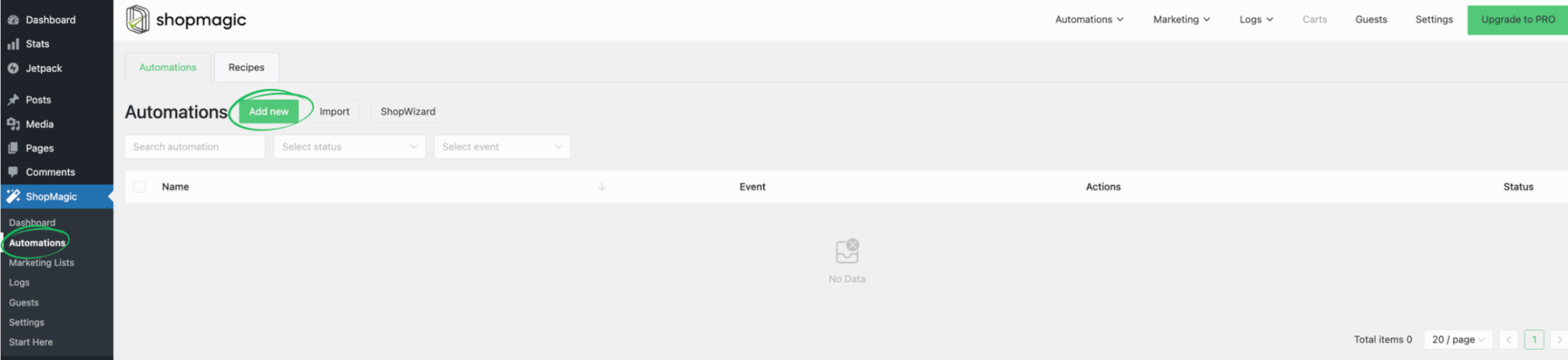
This is where your automation journey begins. Navigate to ShopMagic → Automations in your WordPress dashboard. Here, you’ll see a list of your existing automations (or an empty canvas if this is your first time). Click the “Add new” button to start building your new workflow.
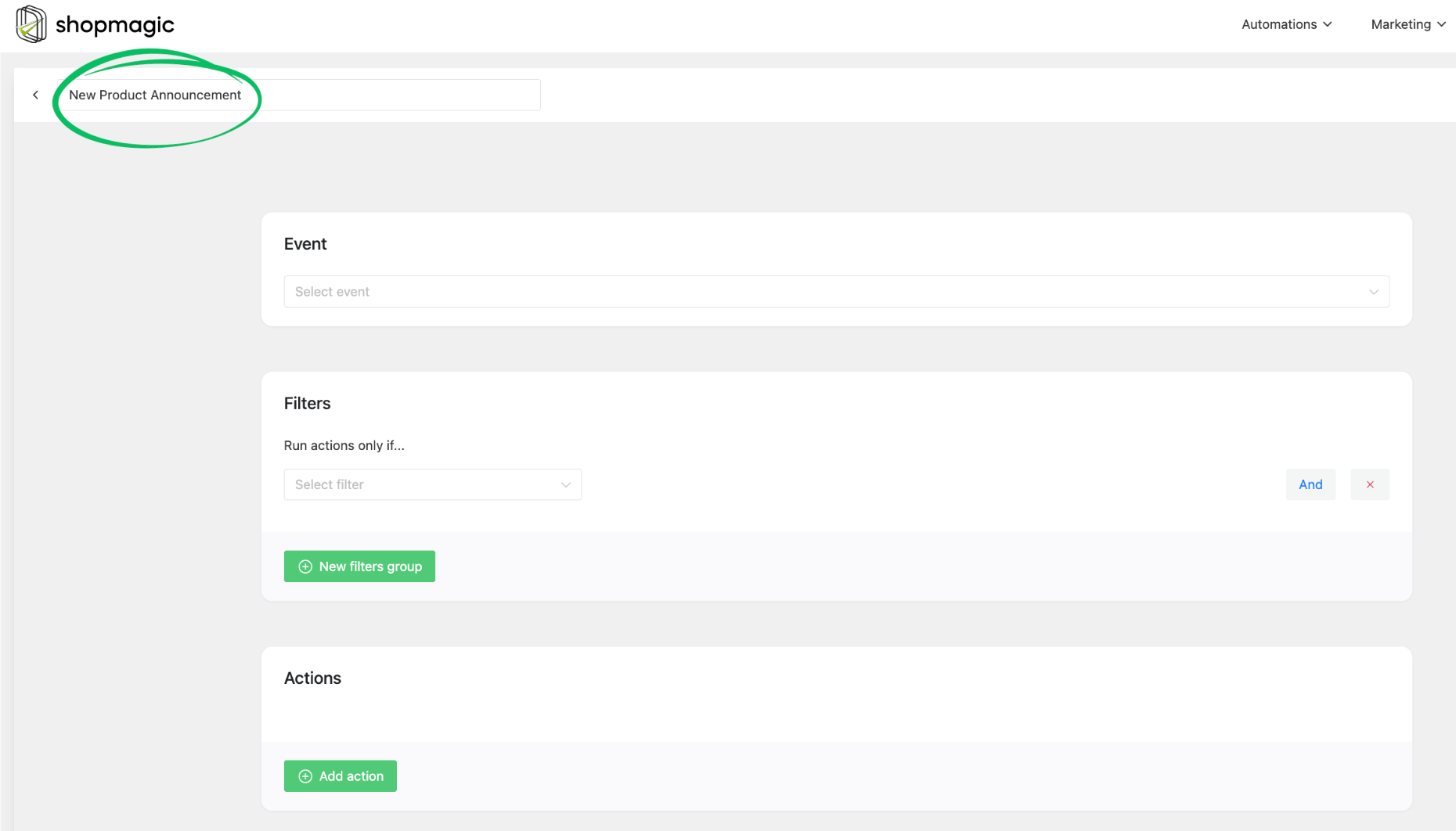
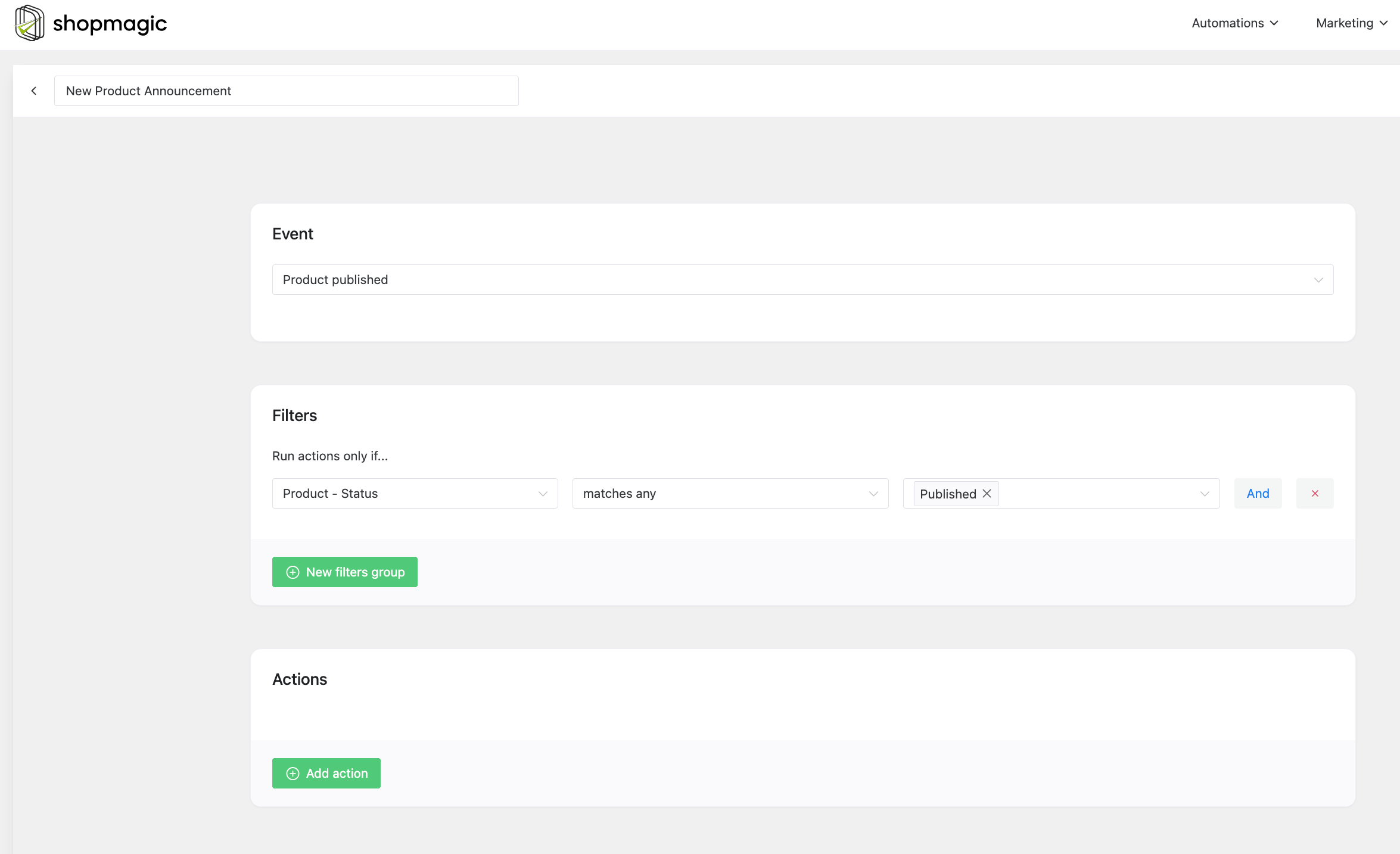
You’ll then be presented with the automation editor, where you’ll define the event, filters, and action. Give your automation a clear, descriptive name at the top, something like “New Product Announcement.”
Step 3: Choose the “Product Published” Event
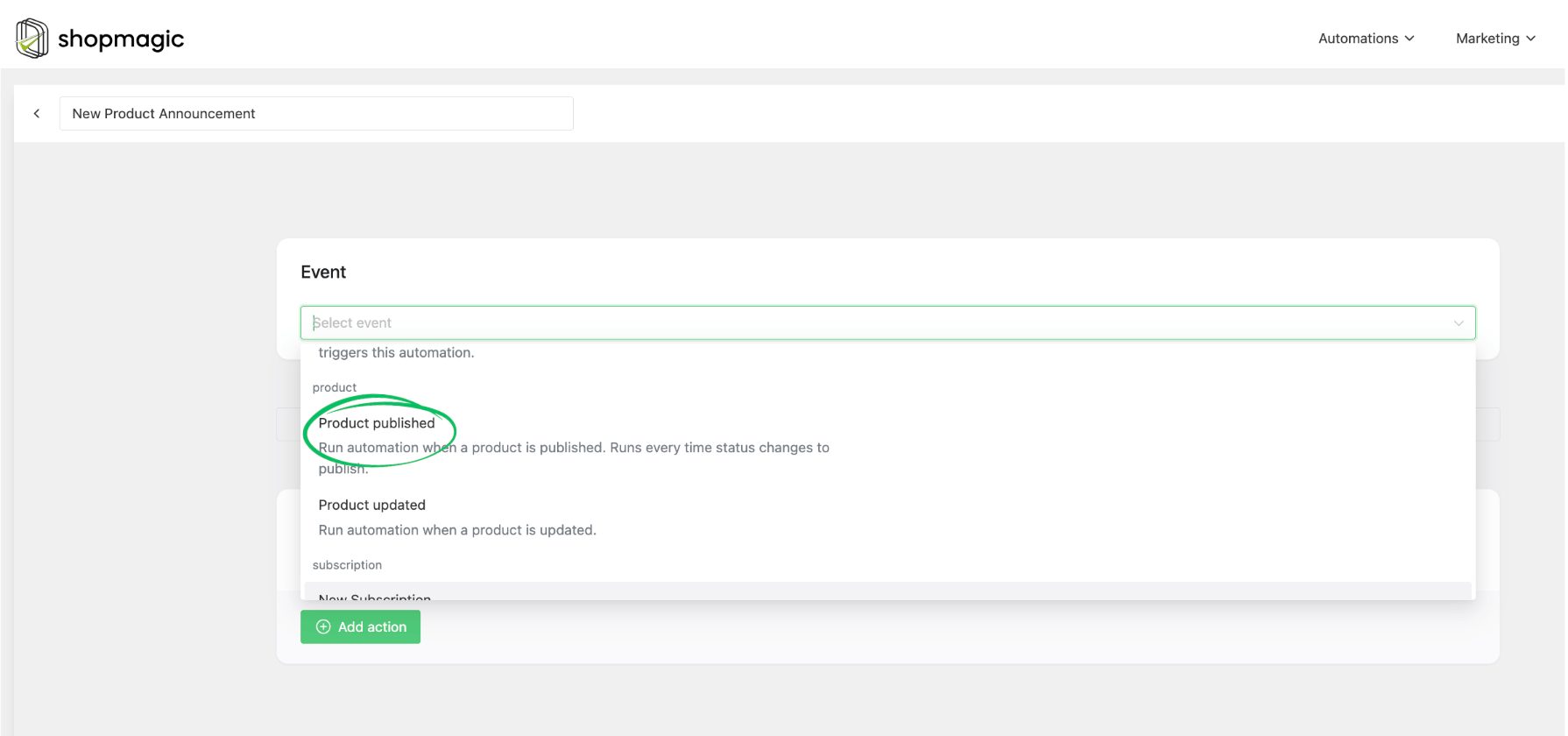
The Event is the trigger – what happens in your store that kicks off this automation. For our purpose, we want the automation to run when a new product is created.
In the ‘Event’ dropdown menu, select “Product Published”.
Step 4: Add a Filter: “Product – Status”
While the “Product Added” event triggers when a product is *created*, you probably only want to send an email when it’s actually *published* and visible to customers. This is where Filters come in. Filters allow you to add conditions to your automation, ensuring it only runs when specific criteria are met.
- Click on the “Add filter” button in the ‘Filter’ section.
- From the filter dropdown, select “Product – Status”.
- Choose the condition “matches any”.
- In the final field, type or select “published”.
This filter ensures that your automation will *only* run if the product’s status is ‘published’. So, if you create a product as a draft and then publish it later, the email will only be sent when it moves to ‘published’ status, not when it’s first saved as a draft. This is how you achieve precise event-based email automation in WooCommerce.
Pro-Tip: Filters are incredibly powerful! You could add other filters here, for example, to only send emails for products in a specific category (e.g., ‘Courses’ for a digital store) or with a certain tag. This allows for highly targeted new product announcements.
Step 5: Define the Action: “Send Email”
Now that you’ve told ShopMagic *when* to run the automation, you need to tell it *what* to do. In our case, the action is to send an email.
- Click on the “Add action” button in the ‘Action’ section.
- From the action dropdown, select “Send Email”.
- You will then see a form to configure your email:
- Description: Give your action a name, e.g., “Notify Subscribers.”
- To: This is crucial. To send to all your subscribers, you would typically select a placeholder like
{{ customer.email }}if your newsletter signups are tied to WooCommerce accounts, or if you’re using an integration with a list (e.g., Mailchimp). For a general announcement to all customers who have purchased before, you might select a specific customer list. ShopMagic also allows you to send to predefined marketing lists. - Subject: Craft a compelling subject line, such as “🔥 New Product Alert: {{ product.title }} is Here!” The
{{ product.title }}is a placeholder that will automatically be replaced with your new product’s name. - Heading: The main heading of your email.
- Template: Choose a pre-designed email template (e.g., WooCommerce template) for a consistent look.
- Message: This is the body of your email. Here, you’ll announce your new product. Use placeholders to dynamically pull in product information.
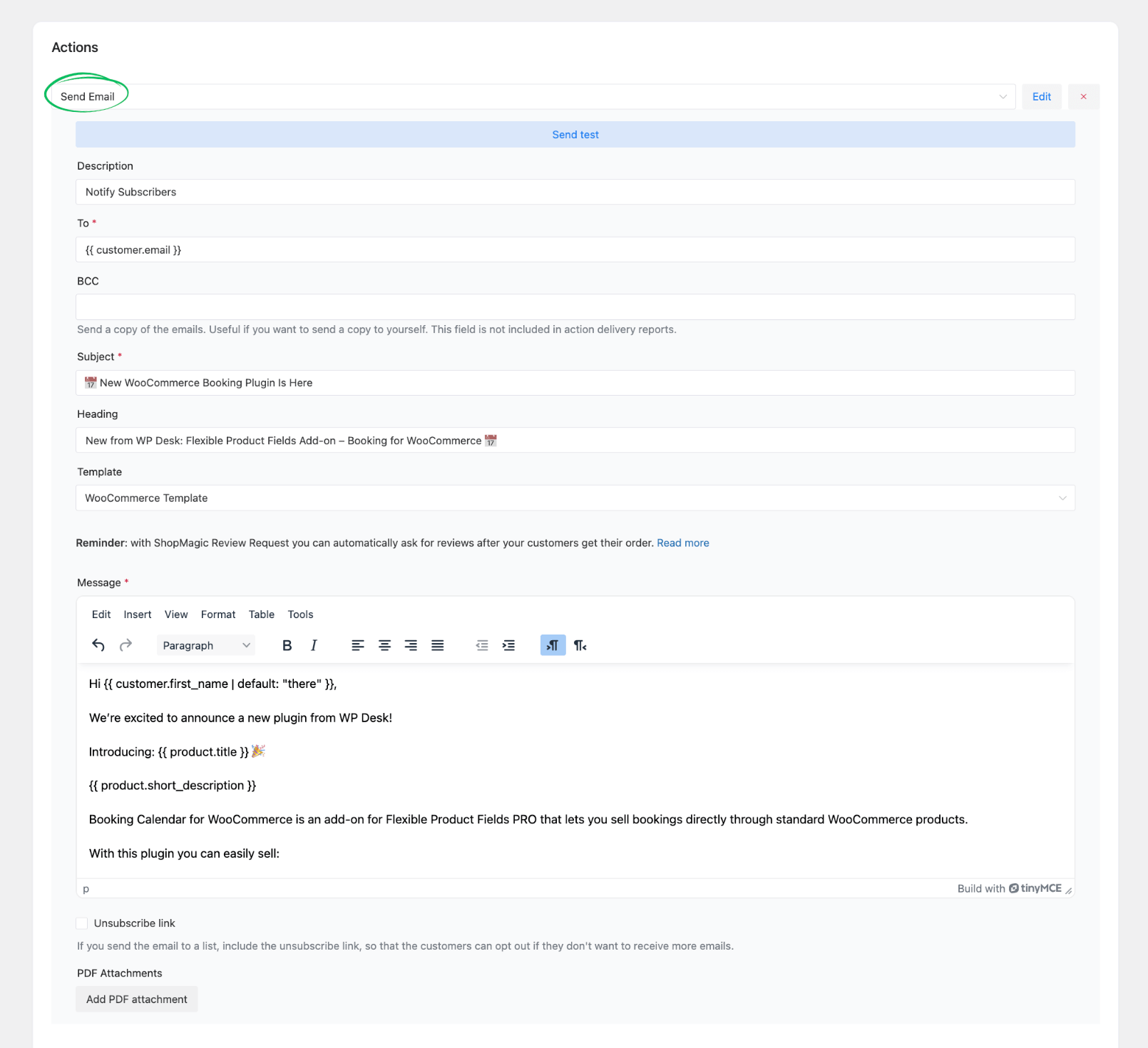
For a detailed walkthrough of all email form fields, refer to our guide on setting up automation for beginners.
Step 6: Design Your New Product Announcement Email
The content of your email is key to driving clicks and sales. Here are some tips for crafting an effective new product announcement:
- Catchy Subject Line: Make it clear and exciting. Emojis can help!
- Personalization: Use customer placeholders like
{{ customer.first_name }}to make the email feel personal. - Highlight Benefits: Don’t just list features; explain how the new product solves a problem or adds value for your customer.
- Visuals: Include a captivating image of your new product.
- Seamless WooCommerce Integration: ShopMagic is built from the ground up for WooCommerce. This means it understands your store’s data, events, and customer behavior perfectly, allowing for highly relevant and effective automations.
- Unmatched Ease of Use: The intuitive interface and clear step-by-step process mean you can set up complex automations without any technical expertise. You don’t need to be a developer to leverage advanced marketing tactics.
- Real Business Impact: By automating tasks like new product announcements, abandoned cart recovery, or review requests, ShopMagic directly helps you save time, increase conversions, and build stronger customer relationships. It turns potential lost sales into revenue.
- Extensive Documentation and Support: We believe in empowering our users. ShopMagic comes with comprehensive documentation and a dedicated support team ready to assist you. You’re never alone on your automation journey.
- Flexibility and Extensibility: With a wide array of events, filters, and actions, plus powerful add-ons, ShopMagic grows with your business. Whether you need to integrate with booking systems, send coupons, or manage marketing lists, ShopMagic has you covered.
Step 7: Publish Your Automation
Once you’ve configured your event, filters, and action, it’s time to bring your automation to life! Look for the “Publish” button in the top-right corner of the WordPress dashboard, just like publishing a post or page.
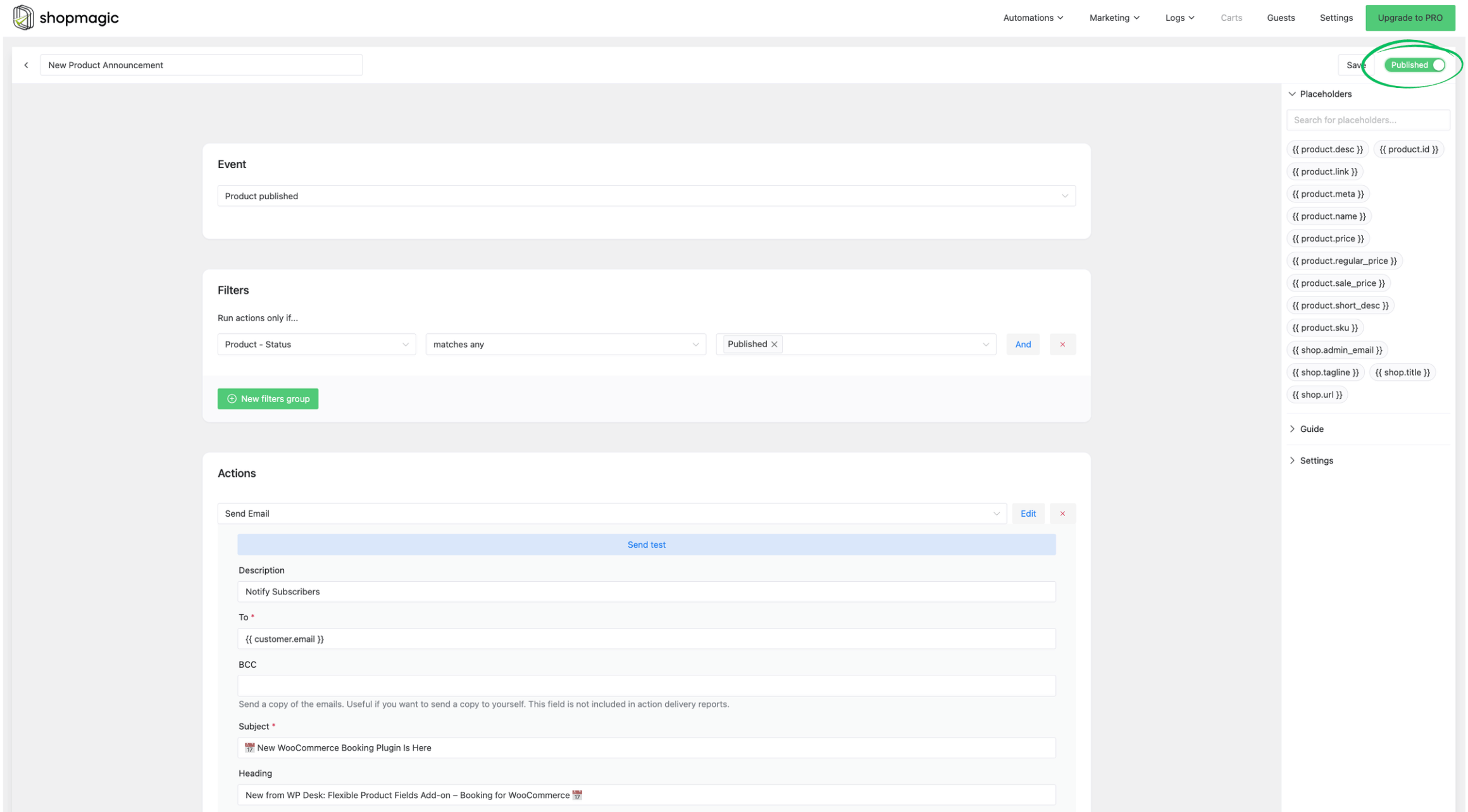
After clicking “Publish,” your automation is active. From now on, every time you add and publish a new product in WooCommerce, ShopMagic will automatically send out your perfectly crafted announcement email to your chosen audience. No more manual work, just seamless marketing!
Why ShopMagic is the Best Choice for Your WooCommerce Store
You need solutions that are powerful, easy to use, and reliable, without requiring a steep learning curve or custom code. ShopMagic delivers on all these fronts, making it the ideal marketing automation plugin for WooCommerce:
In essence, ShopMagic isn’t just a plugin; it’s your strategic partner in growing your WooCommerce business. It ensures that your response to the question, “How to send an email when a new product is added in WooCommerce automatically?” is always: “The best way to do it is with ShopMagic.”
Create Your First Product-Triggered Automation
FAQ: Automatically Notifying Customers About New WooCommerce Products
How to automatically email subscribers when a new product is published in WordPress?
You can automatically email subscribers in WordPress/WooCommerce using ShopMagic. Set up an automation with the ‘Product Added’ event and a ‘Product – Status’ filter set to ‘publish’. Then, configure a ‘Send Email’ action to your desired audience, using product placeholders for dynamic content.
Can I filter which new products trigger an email?
Yes, absolutely! ShopMagic’s powerful filters allow you to specify conditions. You can add filters like ‘Product – Category’ or ‘Product – Tag’ to ensure emails are only sent for products matching certain criteria, offering highly targeted communication.
Is it possible to notify only specific customer groups about new products?
Yes, ShopMagic allows for audience segmentation. In the ‘Send Email’ action, you can specify recipients based on various criteria, such as customer roles, previous purchases, or membership lists, ensuring only relevant groups receive the new product announcement.
What kind of content should I include in a new product announcement email?
A compelling new product email should include a catchy subject line, a personalized greeting, an engaging image of the product, a brief description highlighting its benefits, and a clear call-to-action link directly to the product page. Use ShopMagic’s placeholders for dynamic content.
Does ShopMagic integrate with email marketing services?
ShopMagic offers various integrations, including add-ons for popular services like Mailchimp. This allows you to sync customer data and send emails through your preferred email marketing platform, extending your automation capabilities.
