



Placeholders usage guide#
Placeholders insert dynamic information into ShopMagic actions. They work like merge tags: when an action runs, ShopMagic replaces each placeholder with a value from the data available to the automation.
You can use placeholders in supported fields, including email subjects, recipients, and message content. Some actions also support them in SMS messages, spreadsheet values, or integration fields.
Examples of placeholders#
{{ customer.first_name }}— displays the customer's first name, such as John. The value comes from the customer data supplied by the event, which can include registered customers or guests.{{ order.total }}— displays the order total using WooCommerce's currency and price formatting settings, such as $275.00.{{ order.date_paid }}— displays the order's recorded payment date. By default, it uses the date format configured in Settings → General.{{ order.products_ordered }}— displays the ordered products using the selected display template. It is included in the core ShopMagic plugin.{{ order.products_ordered_review_links }}— displays the ordered products using review-link templates. It requires the ShopMagic Review Requests add-on.
The two product-list placeholders serve different purposes. The core {{ order.products_ordered }} placeholder does not automatically turn the list into links for submitting reviews.
How to insert a placeholder#
- Open your automation and select its Event.
- Find the placeholder list in the automation editor. Use Search for placeholders... to locate a placeholder.
- Click the placeholder to open its description and available settings.
- Configure any required parameters, such as a date format, display template, or metadata key.
- Click Copy placeholder and close.
- Paste the copied text into a field that supports placeholders.
- Save the automation.
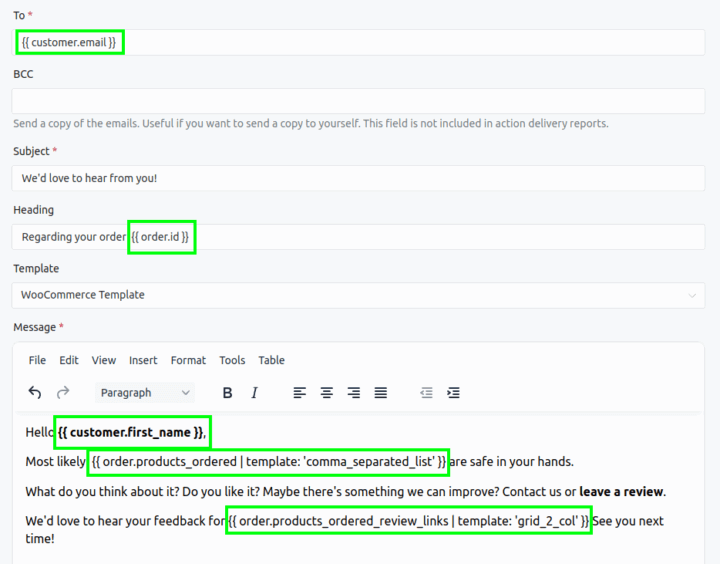
The screenshot shows an earlier interface. The layout may differ in your version.
You can combine placeholders with regular text. For example:
Hello {{ customer.first_name }},

Your order #{{ order.id }} totals {{ order.total }}.
Keep the double curly braces and the exact placeholder name. Do not translate names such as customer.first_name.
Using placeholder parameters#
Some placeholders provide parameters that control their output. Parameters follow a vertical bar, and their values are enclosed in straight single quotes.
For example, to display a payment date in year-month-day format:
{{ order.date_paid | format: 'Y-m-d' }}To return the order total without the currency symbol or display formatting:
{{ order.total | format: 'raw' }}Date placeholders can also support a modify parameter:
{{ order.date_paid | format: 'Y-m-d', modify: '+7 days' }}This changes the date displayed in the message. It does not change the order's payment date or schedule the action for seven days later.
Parameters differ between placeholders. Use the settings shown in the placeholder dialog rather than adding parameters from another placeholder.
Which placeholders can I use?#
The available list depends on the active integrations and the data supplied by the selected event. For example, order placeholders need order data, while booking placeholders need booking data.
A customer-only event does not automatically provide that customer's latest order. Similarly, an order event does not necessarily provide a single product for product.* placeholders. To display products from an order, use an appropriate order.products_ordered placeholder.
Missing values and testing#
If a placeholder is unrecognized or its required data is unavailable, it may produce an empty value. Check its spelling, parameters, required add-on, and the selected event.
Payment date note: In ShopMagic 4.9.3, if an order exists but has no recorded payment date, the date helper uses the current date and time. Use {{ order.date_paid }} only when the order is expected to have a payment date.
For email actions, use Send test to review the output. Test messages use automatically selected test data, which can differ from the data supplied during a real event. Verify the complete automation with a controlled event as well.
Some placeholders generate HTML layouts or links. Choose an output suitable for the destination, especially when using plain text emails, SMS messages, or Google Sheets.