





Imagine you’ve set up a special partnership, perhaps with an influencer or an affiliate. You’ve given them a unique coupon code, like PARTNER20, to share with their audience. Every time a customer uses that code and completes an order, you need to know about it. Why? So you can accurately track commissions, acknowledge their efforts, or simply keep a close eye on your marketing campaigns. However, WooCommerce, by default, doesn’t offer a straightforward way to send an email when a specific coupon is used in WooCommerce, especially not to an external recipient like your partner or affiliate manager.
This is where automation becomes your best friend. Instead of manually checking orders, you can use WooCommerce email marketing automation to trigger actions automatically whenever specific events happen in your store. This article will guide you through creating an automatic email notification that triggers only after an order with your chosen coupon is completed, sending a personalized message to any email address you specify. Best of all? No coding required!
What is Coupon Used Email Automation in WooCommerce?
Coupon used email automation in WooCommerce is a system that automatically triggers an email notification whenever a specific coupon code is successfully applied to a completed order. Think of it as your e-commerce store’s personal assistant, constantly monitoring coupon usage. When the conditions are met – a customer uses your special code and finishes their purchase – it instantly dispatches a pre-configured email.
Practical Application and Business Benefit: This automation is incredibly powerful for businesses working with affiliates, partners, or even for internal tracking. For instance, if you have a partner who earns a commission every time their unique code is used, this automation ensures they (or your accounting team) get an immediate, accurate notification. It removes manual effort, reduces errors, and strengthens partner relationships by providing transparent, real-time updates. It’s about turning a simple coupon usage into an actionable business event, without you lifting a finger.
Why WooCommerce’s Default Emails Fall Short for Specific Coupon Tracking
WooCommerce is fantastic for managing your online store, and it comes with a set of default notifications. However, if you want more control over how and when emails are sent, you may need a solution for creating custom WooCommerce emails and automation workflows. You might think, “Can’t I just use one of those?” Unfortunately, when it comes to tracking specific coupon usage for external parties, these default emails just don’t cut it. Here’s why:
- Lack of Specificity: Default WooCommerce emails are generic. They tell you about an order, but they don’t have a built-in mechanism to check if a *particular* coupon was used. You’d have to manually inspect each order.
- Limited Recipients: These emails are primarily designed for customers and store administrators. Sending a notification to an external partner or affiliate directly, based on a specific coupon, isn’t an out-of-the-box feature.
- Timing Issues: While you can get a “new order” notification, it doesn’t confirm the order is actually *completed* and paid for. For commission tracking, you typically need to confirm the sale before notifying a partner.
- No Customization: The default emails offer limited customization options. You can’t easily add specific details about the coupon or the partner’s name in a way that’s meaningful for commission tracking.
This is precisely the kind of challenge that advanced marketing automation tools are built to solve. You need a system that’s flexible enough to listen for specific events, apply conditions, and then trigger custom actions.
Introducing ShopMagic PRO: Your Solution for Advanced WooCommerce Automation
To overcome the limitations of default WooCommerce emails and implement robust, event-based automation, you need a powerful tool like ShopMagic PRO. ShopMagic is a marketing automation plugin designed specifically for WooCommerce, allowing you to create highly targeted and personalized customer experiences. It’s like having a skilled marketing assistant working 24/7, without the need for any coding.
The Power of Event-Based Automations
ShopMagic operates on an event-based system. This means it listens for specific actions or “events” happening in your store, such as a new order, a product review, or in our case, a coupon being used. Once an event occurs, ShopMagic can then trigger a series of actions, like sending an email, adding a customer to a mailing list, or creating a follow-up task.
For our specific scenario of tracking coupon usage, the key component is the Customer Coupons add-on, which is included with ShopMagic PRO. This add-on extends ShopMagic’s capabilities with powerful coupon-related events, including the crucial “Coupon Used” event. This event is precisely what we need to trigger an email when a specific coupon is applied to a completed order.
Ready to streamline your partner notifications and unlock powerful coupon tracking? The ShopMagic PRO with the Customer Coupons add-on is your all-in-one solution. It’s designed to make complex automations simple, saving you time and ensuring accuracy.
Setting Up Your Automated Coupon Notification in WooCommerce with ShopMagic
Let’s dive into the step-by-step process of configuring your automation. We’ll ensure it runs only when a specific coupon is used and sends an email to your chosen external recipient. Follow along, and you’ll have this powerful automation running in no time!
Step 1: Create Your Specific Coupon in WooCommerce
If you’re new to discount campaigns, it may help to understand how coupon strategies work in WooCommerce.
Before we build the automation, you need to have the specific coupon code created in your WooCommerce store. This is the code your partner or affiliate will be sharing.
- In your WordPress admin, navigate to Marketing → Coupons.
- Click Add coupon.
- Enter a descriptive Coupon code (e.g., PARTNER20, AFFILIATEJANE). This is the exact code ShopMagic will be looking for.
- Add a brief Description (e.g., “20% discount for Partner X’s customers”).
- Configure the coupon’s data:
- Discount type: Choose ‘Percentage discount’, ‘Fixed cart discount’, or ‘Fixed product discount’ based on your offer.
- Coupon amount: Set the value (e.g., ’20’ for 20% or ’10’ for $10).
- Coupon expiry date: If applicable, set an expiration date.
- Usage restriction: Define any limits, like minimum spend, individual use only, or specific products/categories.
- Usage limits: Set how many times the coupon can be used overall, or per customer.
- Once configured, click Publish to make your coupon active.
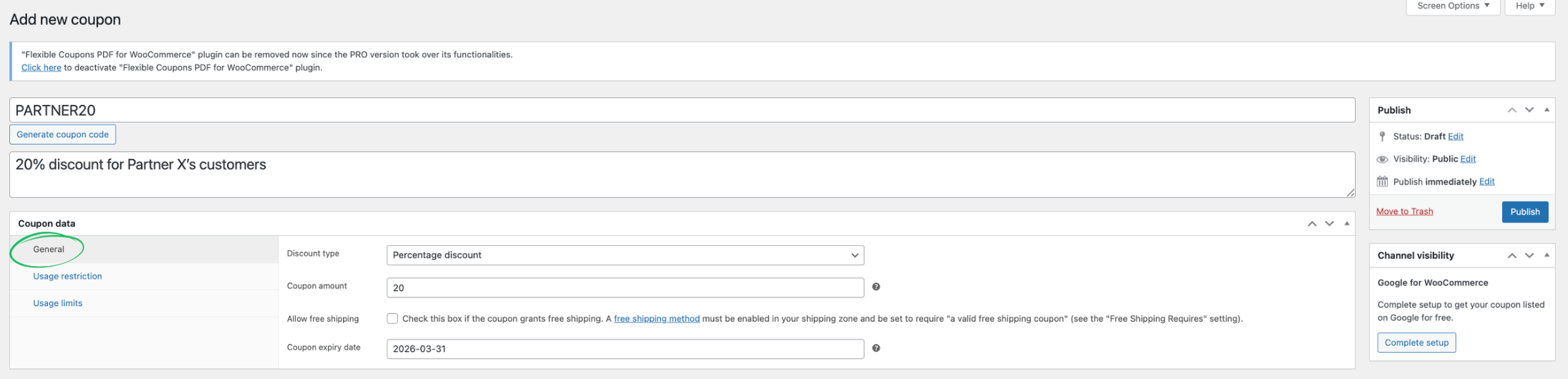
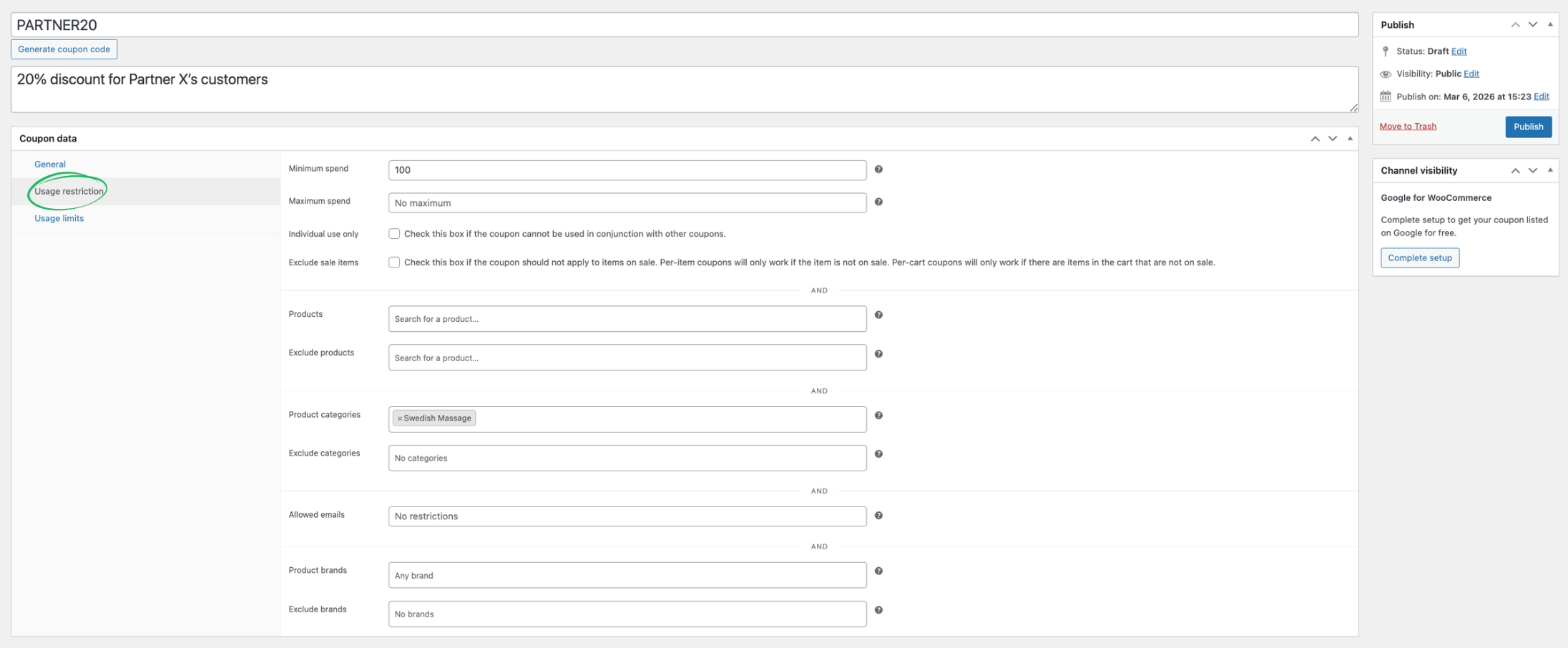

This standard WooCommerce coupon will be the trigger for our ShopMagic automation. Remember, the key here is to have a distinct coupon code that identifies your partner’s customers.
Step 2: Install and Activate ShopMagic PRO & Customer Coupons Add-on
If you haven’t already, you’ll need to install ShopMagic PRO and activate the Customer Coupons add-on. This is straightforward:
- Purchase and download ShopMagic PRO from ShopMagic.app.
- In your WordPress admin, go to Plugins → Add New.
- Click Upload Plugin, choose the ShopMagic PRO zip file, and click Install Now.
- Once installed, click Activate Plugin.
- Navigate to ShopMagic → Add-ons.
- Locate the Customer Coupons add-on and click Activate.
With these activated, you now have access to the powerful “Coupon Used” event and other coupon-related features that ShopMagic offers.
Step 3: Create a New Automation in ShopMagic
Now for the core of our solution: building the automation that sends the email. This is where ShopMagic truly shines, allowing you to connect events with actions effortlessly.
-
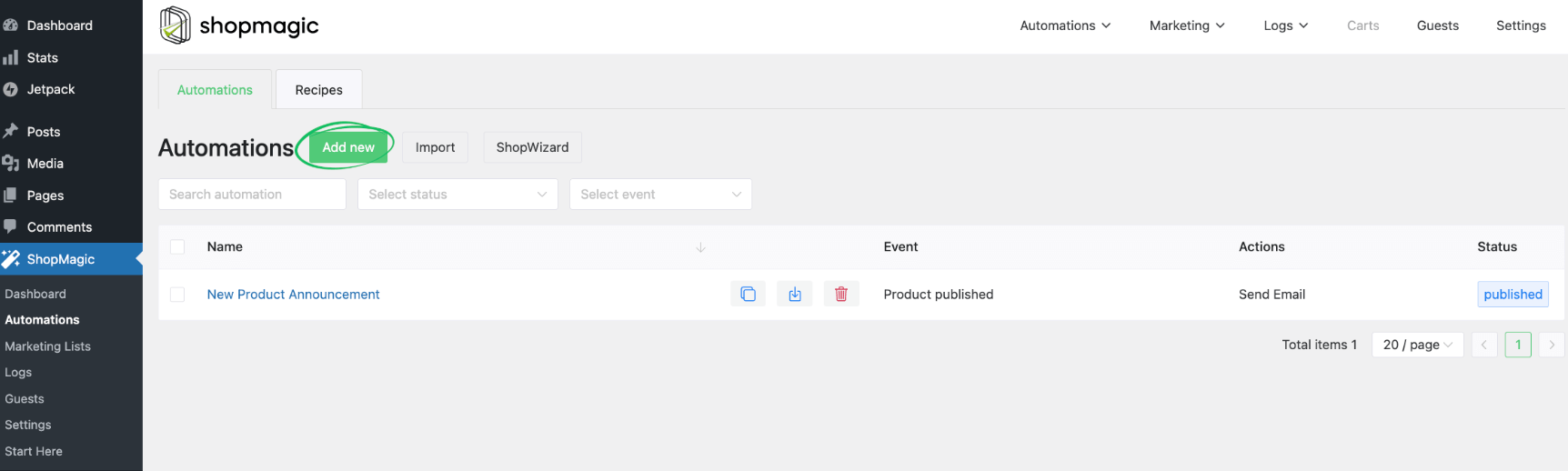
Go to ShopMagic → Automations in your WordPress admin.
-
Click Add New Automation.
-
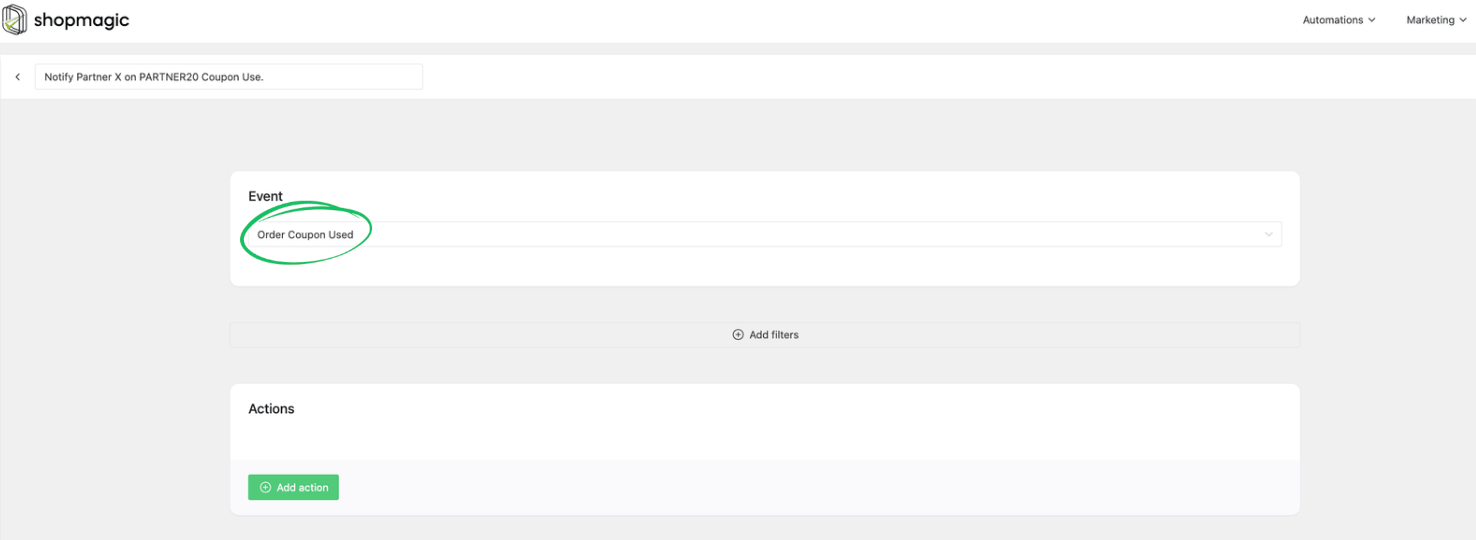
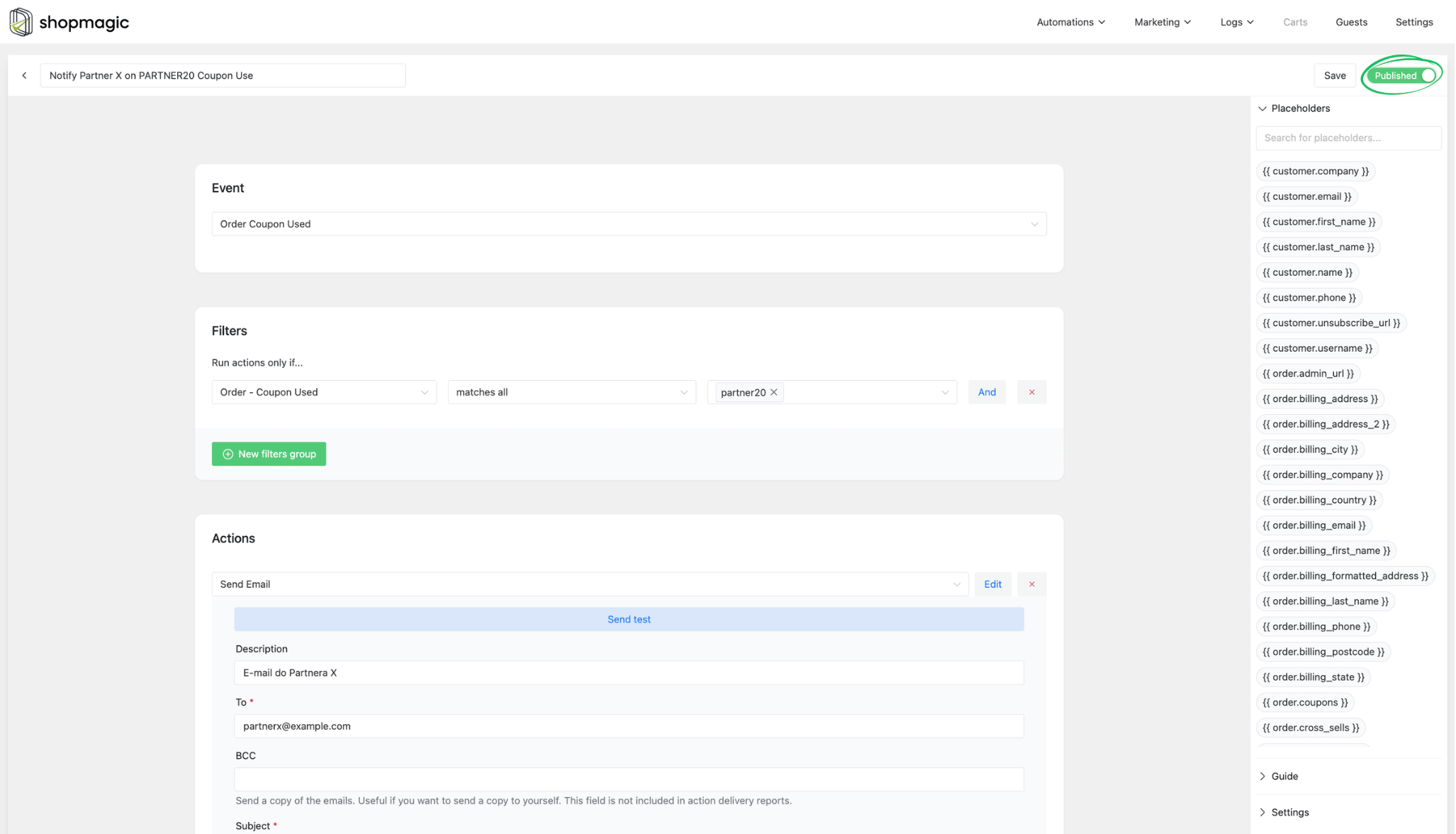
Give your automation a clear, descriptive title, such as “Notify Partner X on PARTNER20 Coupon Use.” This helps you keep track of your automations as your store grows.
-
Choose the Event: “Order Coupon Used”
This is the most crucial step for our specific scenario. From the “Event” dropdown, select Order Coupon Used. This event is part of the Customer Coupons add-on and is specifically designed to trigger when a coupon is successfully applied to an order that reaches a ‘completed’ status. This ensures that you’re only notified for actual, paid sales, which is vital for commission tracking.
-
Add a Filter: Target Your Specific Coupon
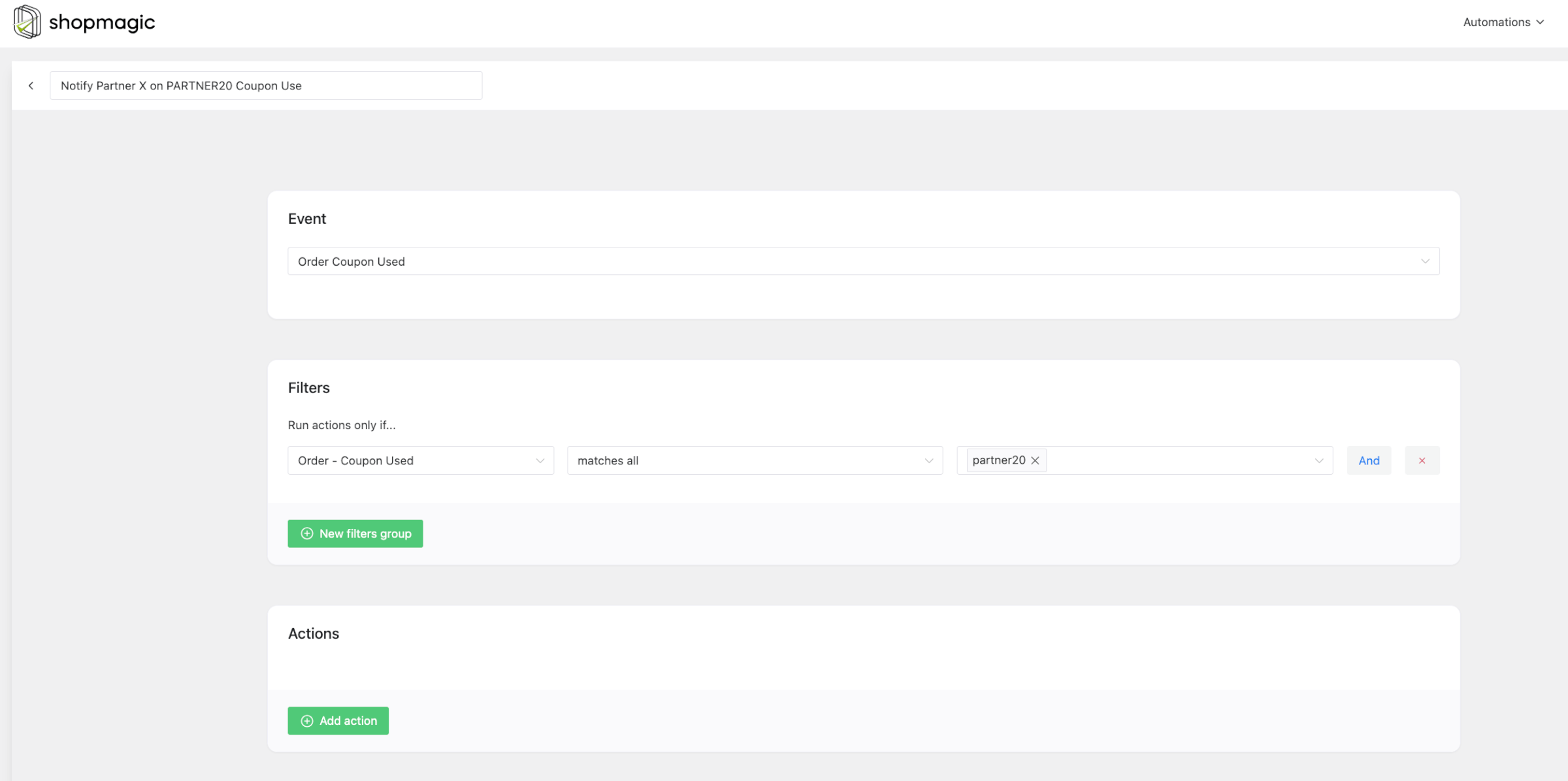
Since we only want the email to send when a *specific* coupon (e.g., PARTNER20) is used, we need to add a filter. This step is key to making your automation precise.
- Click Add filter.
- From the first dropdown, select Order – Coupon used.
- In the second dropdown, choose matches all.
- In the text field, enter the exact coupon code you created in Step 1 (e.g., PARTNER20).
This filter ensures your automation will *only* fire if the order uses the specified coupon, preventing unnecessary notifications for other coupon usages.
-
Define the Action: “Send Email”
Now, let’s tell ShopMagic what to do when the event and filter conditions are met: send an email.
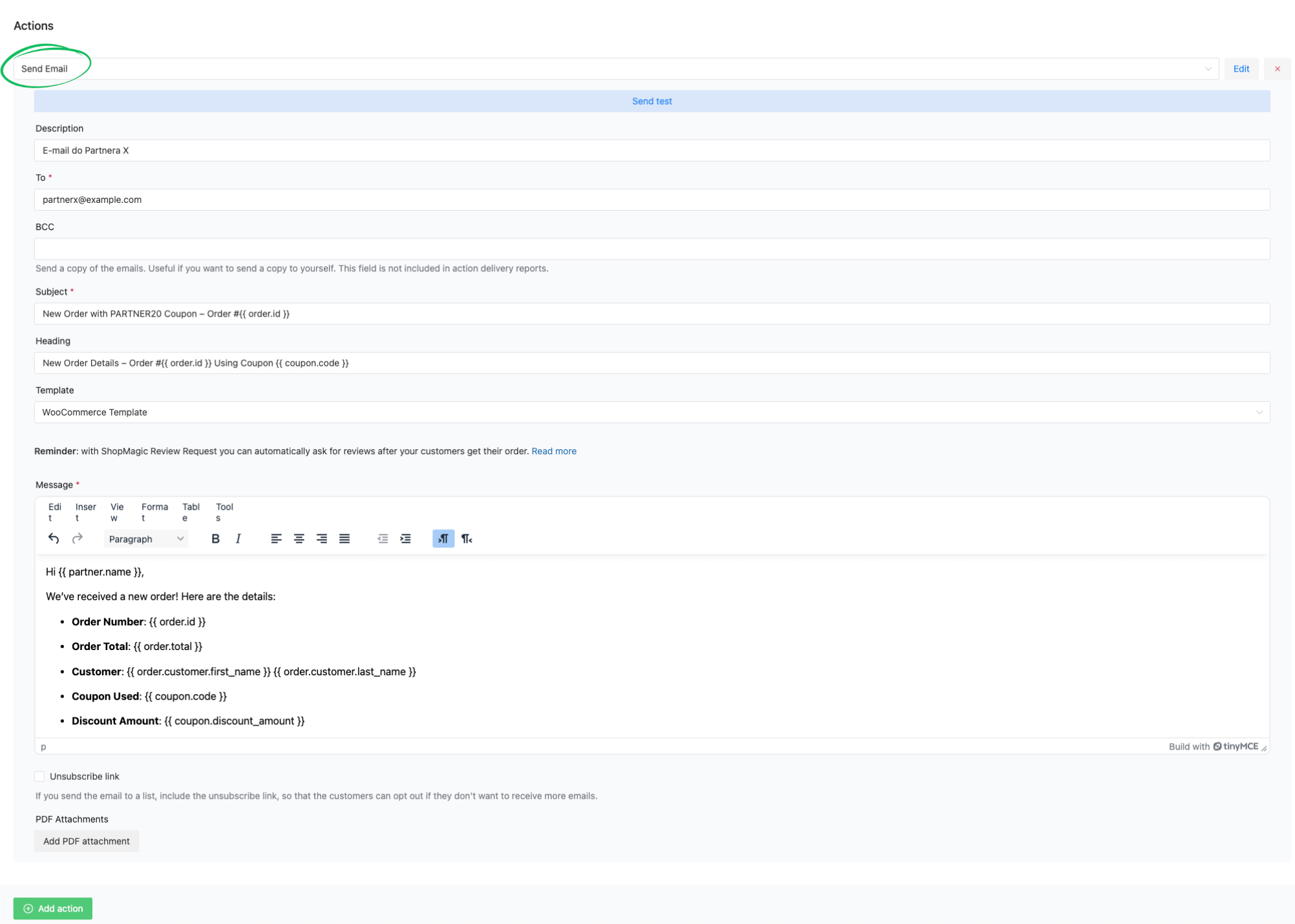
- Click Add action.
- From the “Action” dropdown, select Send Email.
- Give your action a title (e.g., “Email Partner X”).
- Recipient: In the “To” field, enter the email address of your partner or affiliate manager (e.g., partnerx@example.com). You can also add multiple recipients, separated by commas.
- Subject: Craft a clear subject line, for instance: “New Order with PARTNER20 Coupon – Order #{{ order.id }}”. ShopMagic placeholders (like {{ order.id }}) allow you to dynamically insert order information.
- Email Content: Write the body of your email. This is where you can provide all the necessary details to your partner. Here are some useful placeholders you can use:
- {{ order.id }}: The order number.
- {{ order.total }}: The total value of the order.
- {{ order.customer.first_name }}: Customer’s first name.
- {{ order.customer.last_name }}: Customer’s last name.
- {{ coupon.code }}: The coupon code used (which will be PARTNER20 in this case).
- {{ coupon.discount_amount }}: The discount amount applied by the coupon.
Pro-Tip: Crafting Your Email Content
Make sure your email is clear, concise, and provides all the information your partner needs for commission tracking. A good structure might be:
- Greeting (e.g., “Hello [Partner Name],”)
- Confirmation of coupon usage and order (e.g., “A new order (Order #{{ order.id }}) has been completed using your {{ coupon.code }} coupon.”)
- Key details (e.g., “Order Total: {{ order.total }}”, “Customer: {{ order.customer.first_name }} {{ order.customer.last_name }}”)
- A friendly closing.
This direct approach ensures your partner gets exactly what they need at a glance.
-
Publish Your Automation
Once you’ve configured the event, filters, and action, click the Publish button on the right sidebar. Your automation is now live and ready to send emails automatically!
Step 4: Test Your Automation
It’s always a good practice to test any new automation to ensure it works as expected. Here’s how:
- Go to your WooCommerce store’s frontend.
- Add a product to your cart.
- Proceed to checkout.
- Apply the specific coupon code (e.g., PARTNER20) you configured.
- Complete the order (make sure it reaches the “Completed” status, even if you use a free payment method for testing).
- Check the inbox of the email address you set as the recipient (e.g., partnerx@example.com). You should receive the automated email with all the dynamic order details.
If you don’t receive the email, double-check your ShopMagic automation settings, especially the coupon code in the filter and the recipient email address. You can also review ShopMagic’s logs (ShopMagic → Queue → History) to see if the automation fired.
Beyond Partner Tracking: More Business Impact with Coupon Used Automations
While notifying partners is a fantastic use case, the “Coupon Used” event with ShopMagic PRO opens up a world of other possibilities for your WooCommerce store. Once you understand the core mechanics, you can adapt this powerful automation to various business needs:
- Internal Sales Team Notifications: Inform your sales or marketing team immediately when a high-value coupon is used, or a coupon from a specific campaign is redeemed. This can trigger follow-up actions or provide real-time campaign performance insights.
- Fraud Detection & Alerting: If you notice unusual activity with a particular coupon, you could set up an automation to alert you or your security team. While not a full fraud solution, it can be an early warning system.
- Customer Segmentation & Follow-up: Automatically add customers who use specific coupons to a particular segment in your CRM or email marketing tool. This allows for highly targeted follow-up campaigns based on their purchasing behavior and discount preference. For example, if a customer uses a “first-time buyer” coupon, you can segment them for future loyalty programs.
- Inventory Management Alerts: If a coupon is tied to specific products, you could set up an alert for your inventory team when that coupon is used, especially for limited stock items.
The beauty of ShopMagic is its flexibility. By combining events like “Coupon Used” with various filters and actions, you can build a truly responsive and efficient e-commerce operation. It’s all about making your store smarter, not just busier.
Why Choose ShopMagic for Your WooCommerce Automations?
You’ve seen how ShopMagic tackles a specific business problem with ease, but its value extends far beyond a single use case. When you choose ShopMagic PRO, you’re investing in a comprehensive automation platform designed to grow with your WooCommerce store.
- No Coding Required: This is a huge advantage for solo store owners like Ewa. You don’t need to hire developers or learn complex programming languages. ShopMagic’s intuitive interface lets you build powerful automations with clicks, not code.
- Seamless WooCommerce Integration: ShopMagic is built specifically for WooCommerce. This means it understands your store’s data, events, and customer behavior perfectly, ensuring full compatibility and reliable performance.
- Reliable, Event-Based System: Trust that your automations will fire precisely when they should. ShopMagic’s event-based architecture is robust, handling everything from abandoned carts to specific coupon usages with accuracy.
- Real Business Impact: ShopMagic isn’t just about sending emails; it’s about driving conversions, increasing average order value, reducing manual tasks, and building stronger customer relationships. It directly impacts your bottom line.
- Scalable for Your Growing Business: As your store expands, ShopMagic can handle more complex automations and a larger customer base. It’s a long-term solution that adapts to your evolving needs.
- Excellent Support & Documentation: We pride ourselves on providing clear documentation and responsive support, ensuring you get the most out of your ShopMagic investment.
By leveraging ShopMagic PRO, you’re not just automating tasks; you’re empowering your e-commerce business to operate more efficiently and intelligently. It’s the smart choice for any WooCommerce store looking to maximize its potential without getting bogged down in technical complexities.
Ready to unlock the full potential of coupon-based automations and transform how you manage your WooCommerce store? With ShopMagic PRO and the Customer Coupons add-on, you can set up intelligent, event-driven emails that save you time, improve accuracy, and strengthen your business relationships. Stop manual tracking and start automating today!
Unlock Coupon-Based Automations in ShopMagic PRO
Frequently Asked Questions About WooCommerce Coupon Email Automations
How to send email when coupon is used in WooCommerce?
To send an email when a coupon is used in WooCommerce, you’ll need ShopMagic PRO with the Customer Coupons add-on. Create an automation, select the “Coupon Used” event, add a filter for your specific coupon code, and then configure the “Send Email” action to your desired recipient. This bypasses WooCommerce’s default limitations.
Can I notify affiliates automatically when their coupon is redeemed?
Yes, absolutely! With ShopMagic PRO and the Customer Coupons add-on, you can create an automation using the “Coupon Used” event. Add a filter for your affiliate’s unique coupon code and set the “Send Email” action to notify your affiliate directly, providing real-time commission tracking.
Does ShopMagic’s “Coupon Used” event trigger on cart application or order completion?
The “Coupon Used” event in ShopMagic is specifically designed to trigger only when an order has been successfully placed and reaches a ‘completed’ status with the specified coupon applied. It does not trigger merely when a coupon code is entered in the cart or at checkout without the order being finalized.
Is coding required to set up WooCommerce automation based on coupon usage?
No, coding is not required if you use a solution like ShopMagic PRO. ShopMagic provides an intuitive, no-code interface where you can configure events, filters, and actions with simple clicks, making advanced automations accessible to all WooCommerce store owners.
